Recognition rules setup
elDoc AI Document Processing performs document processing using Recognition Rules defined in the system.
This page describes how to configure Recognition Rules:
Recognition Rule creation
You can create an unlimited number of Recognition Rules in the system. To create a new Recognition Rule, click the +Add button on the Recognition Rules page.
Recognition rule settings
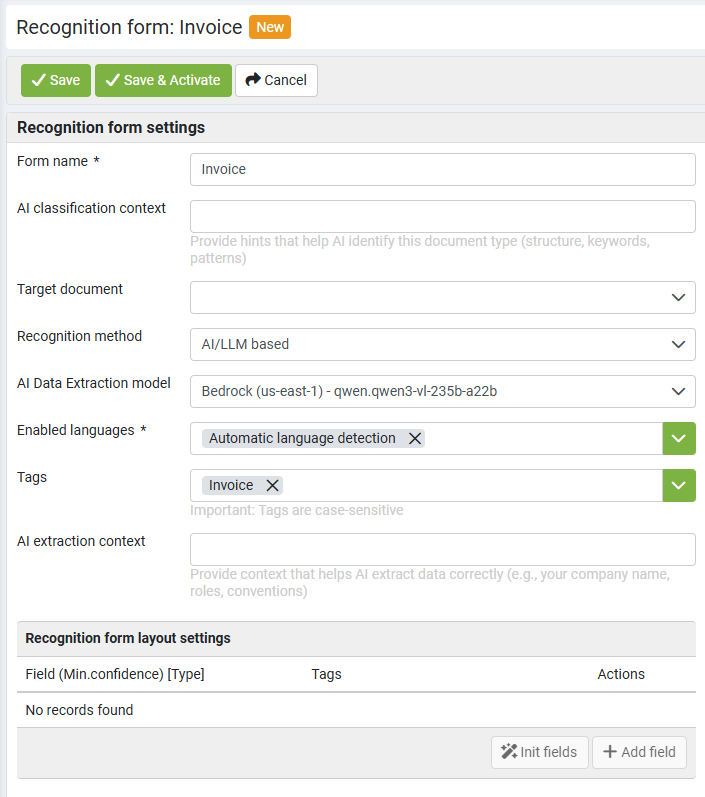
Form name - a unique and descriptive name that clearly identifies the corresponding document type.
NOTE: Form name should be a unique name.
Hint
It is recommended to define a consistent naming convention for Recognition Rules to simplify administration as the number of rules grows.
Naming convention may look as follows:
- Example for invoices: {docType}_{remarks} e.g.: Invoice_VENDOR1, Invoice_VENDOR2, etc.;
- Example for utility bills: {docType}_{provider}_{layoutType}_{remarks} e.g.: Bill_CLP_L1_en, Bill_WSD_L1_cn, etc.
This improves the consistency and manageability of Recognition Rules.
AI classification context - provides a description of the document type that helps AI/LLM models accurately identify and classify matching documents.
Target document - select the target Document type when the recognition result must be converted after processing. Leave this field blank when conversion is not required.
Recognition method - defines the recognition approach used by the Recognition Rule.
- AI/LLM based - automatically extracts document data using AI/LLM models. Available when AI/LLM functionality is enabled.
- Anchor based - recommended for documents with a consistent layout or fixed table structure, such as invoices, purchase orders, service reports, and transcripts.
- Regex-based - recommended for documents with variable layouts or without a fixed table structure, such as boarding passes or payment instructions.
- Custom plugin based - uses a custom plugin to process non-standard or specialized document types.
AI Data Extraction model - defines the AI/LLM model used to process documents matched to this Recognition Rule.
Enabled languages – selects the languages used during recognition. English is selected by default. When multiple languages are selected, the first selected language is treated as the primary document language.
Hint
For better recognition accuracy, select only the languages that are actually expected in the document. Where possible, use a single language, as enabling unnecessary languages can reduce OCR accuracy.
Keywords - lists keywords which are associated with a particular type of the document and/or minus key words that are not associated with a particular type of the document. Adding keywords and/or minus keywords to the specific Recognition Rules helps to optimize Recognition Queue processing. The following rules are applied during the recognition process:
- Keywords (inclusive) - all listed keywords must be present for the Recognition Rule to remain a candidate.
- Minus keywords (exclusive) - prefixed with
-; if any exclusive keyword is found, the Recognition Rule is excluded.
Keywords also support regex when used with prefix "regex:", e.g.:
- regex:invo[i1l]ce - Regex-based keyword which handles cases like invoice, invo1ce and involce;
- -regex:invo[i1l]ce - Regex-based minus keyword which handles cases like invoice, invo1ce and involce;
Regex-based keywords follow general keywords rules and support general regular expression syntax;
Note
Tags - define categories assigned to the Recognition Rule and can be used to restrict document processing to a relevant subset of Recognition Rules. When tags are assigned to a Recognition Document, elDoc shortlists Recognition Rules containing all corresponding tags.
Document sample upload
A document sample is required for layout-based Recognition Rules to define the document structure and field locations. For AI/LLM-based Recognition Rules, the document sample is not used to define anchor regions in the same way as for layout-based recognition methods.
Hint
For best results, use a high-quality document sample scanned at a minimum resolution of 300 DPI, correctly aligned, free from significant artifacts, and containing only the relevant target pages.
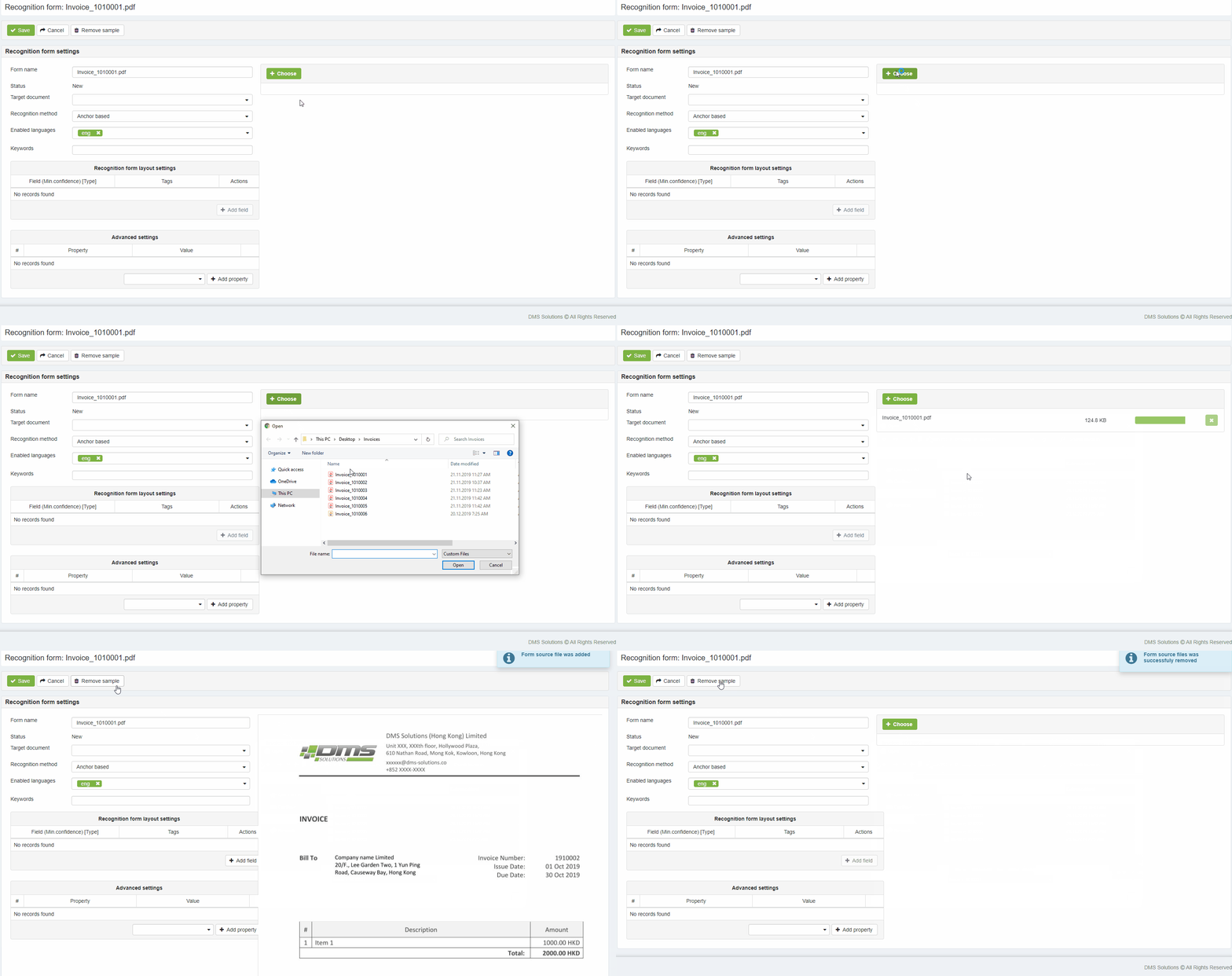
1) Once new RecoForm is created you need to provide document sample which the given RecoForm will be processing by extracting its data.
- Press +Choose button to upload document sample;
- Press Remove sample button to remove attached sample.
2) Uploaded Document sample is displayed at the right side of the Recognition form page.
Recognition Rule layout settings
The Recognition Rule layout settings define the document layout and specify which values must be extracted during processing.
Click +Add Field to add a new field to the Recognition Rule layout.
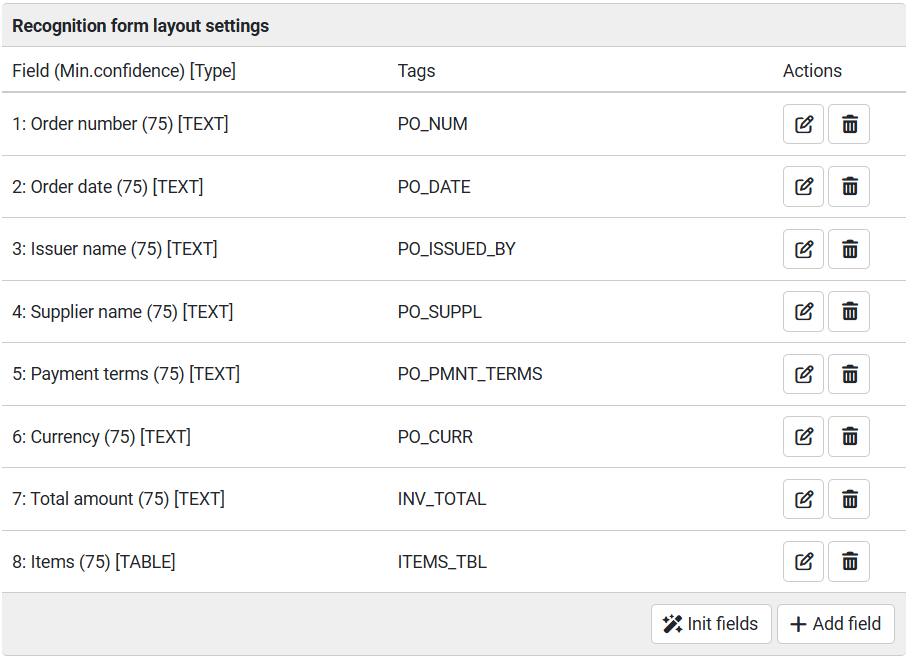
For Anchor based Recognition method - pressing the +Add Field button also adds 2 rectangular markers on the Document sample preview area that should be mapped (marked over) to the field value region (pink filled) and field anchor (green filled).
When AI functionality is enabled, the Init Fields button becomes available. It uses AI to perform initial detection of fields in the document sample.
Field properties
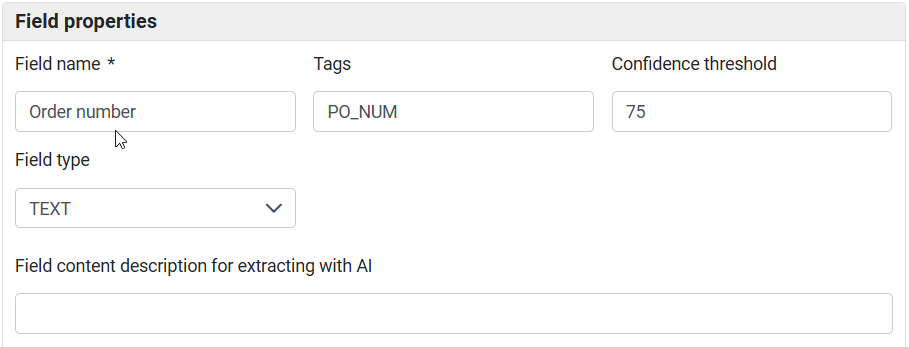
Field name – defines a user-friendly name describing the value to be extracted, for example Invoice Number, Issue Date, or Total Amount.
Tags - define identifiers used for programmatic access to extracted values through the API. When Conversion is enabled and a Target document is selected, the tags must correspond to the applicable tags in the target Document Form, defined via "Document form -> Form builder" page.
Confidence threshold - defines the minimum acceptable confidence level for the field, from 0 to 100%.. For the critical fields it is recommended to set value above 85-90. For the optional fields this value can be set to 0.
Note
During processing, the confidence of the extracted value is compared with the configured threshold. If the confidence is below the threshold, the document is routed to the manual validation.
Field type – defines type of the field. By default it is set to "TEXT".
- TEXT - regular text field.
- OMR - stands for (Optical Mark Recognition) and defines fields with optical marks in form of check-boxes and circles.
- TABLE - defines a table field used to locate and extract structured tabular data.
- IMAGE - extracts an image region from the document.
Field content description for extracting with AI - provides semantic guidance that helps AI/LLM models identify, locate, and extract the required field value from the document.
Anchor text – (shown for Anchor based recognition method) defines the field anchor and should contain the text exactly as it appears in the document sample.
Note
An anchor is a static label expected to appear consistently in documents of the same type and is used to locate the corresponding value region.
The Anchor text field supports both plain-text and regex-based values. Regex-based value have to start with "regex:" prefix (e.g.: value "regex:INV(O|0)ICE" will serve as anchor text for both variants of the labels: INVOICE and INV0ICE).
While moving anchor selection box over the document sample - system automatically captures selected text and focuses anchor selection box exactly to the matching text.
Text field settings

Apply regex – defines whether to apply regular expression for the field value partial data extraction (e.g. only numbers without symbols, etc.) by entering regular expression into input field next to the checkbox. The following regex types are available:
- Standard - uses standard regex syntax rules. Named capturing-group should be used with the "value" name, e.g.: "(?<value>X)", where X is the target value which is to be stored as field's value (see more details on the Recognition tuning page).
- Bitap - uses embedded Bitap syntax rules (available only for Regex based RecoForm types). Bitap allows to extract partially matched data from the documents, which matches the defined pattern (with the defined number of mistakes). Bitap supports the following syntax:
- \d - digits, [0-9]
- \D - non-digits, [^0-9]
- \x - letter characters, [a-zA-Z]
- Example: in order to capture text "HKD235.90CR" from the document the expression "HKD\d\d\d.\d\dCR" is to be used with number of mistakes 1 or 2 (depends on the specific case). Using such settings will help to capture values like: "HKO235.90CR", "HKO235.90C", etc.
Table field settings
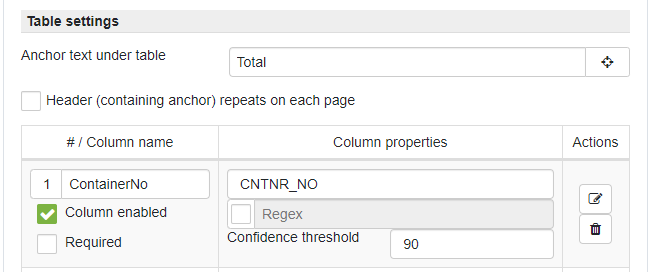
Anchor under table - defines field or text which indicates table end
Header (containing anchor) repeats on each page - defines whether table has a header (with the marked anchor) which repeats on each subsequent page.
By using columns management controls - columns can be added for the given table. Columns have the same parameters as a regular text fields: Name, Tags, Regex and confidence threshold.
Column enabled - determines whether the column is active, displayed in the interface, and available through the API. Intermediate columns which are not required to be captured and displayed can be disabled.
Required - specifies that every row must contain a value in the column. If a required value is missing, the document is routed to validation.
OMR field settings
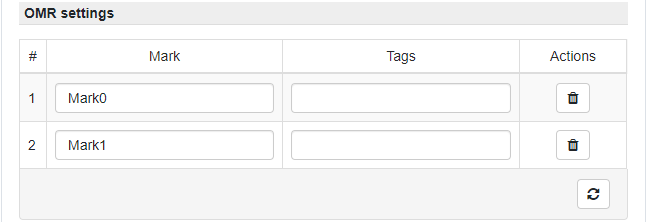
Detect marks - button runs automatic detection of the check-marks in the selected region on the document sample.
Delete - button deletes check-mark for which it was pressed.
Check-marks table provides controls for defining check-mark field name and its tag(s).
IMAGE field settings
Image field type has a standard settings similar to text field.
NOTE: best quality is achieved when processing machine-generated PDF-files, in such case elDoc IDP extracts original image stored in the PDF. When processing an image-based files - image is extracted from the pre-processed source file, as such it is returned as is.
Misc settings
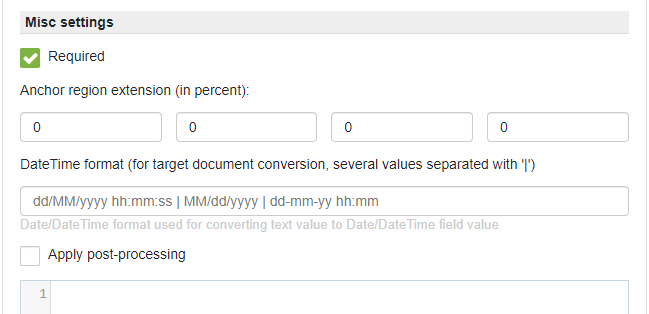
Required - marks field as required. Required fields must always have value on the document. In case field marked as not required - means that field is optional and can be absent on the document or its value can be blank.
Anchor region extension (in percent) - expands the search area around the anchor position defined in the sample document. Values are specified in the following order: Top, Right, Bottom, Left.
DateTime format (for target document conversion, several values separated with '|') - defines date/time format(s) for the field in case current field captures text which represents date/time value. Used when conversion is enabled for the given RecoForm and target field is of the date/time format.
Apply post-processing - defines whether to use field post-processing using JavaScript code (see Recognition results post-processing page for more details).
Field setup (manual) for anchor-based method
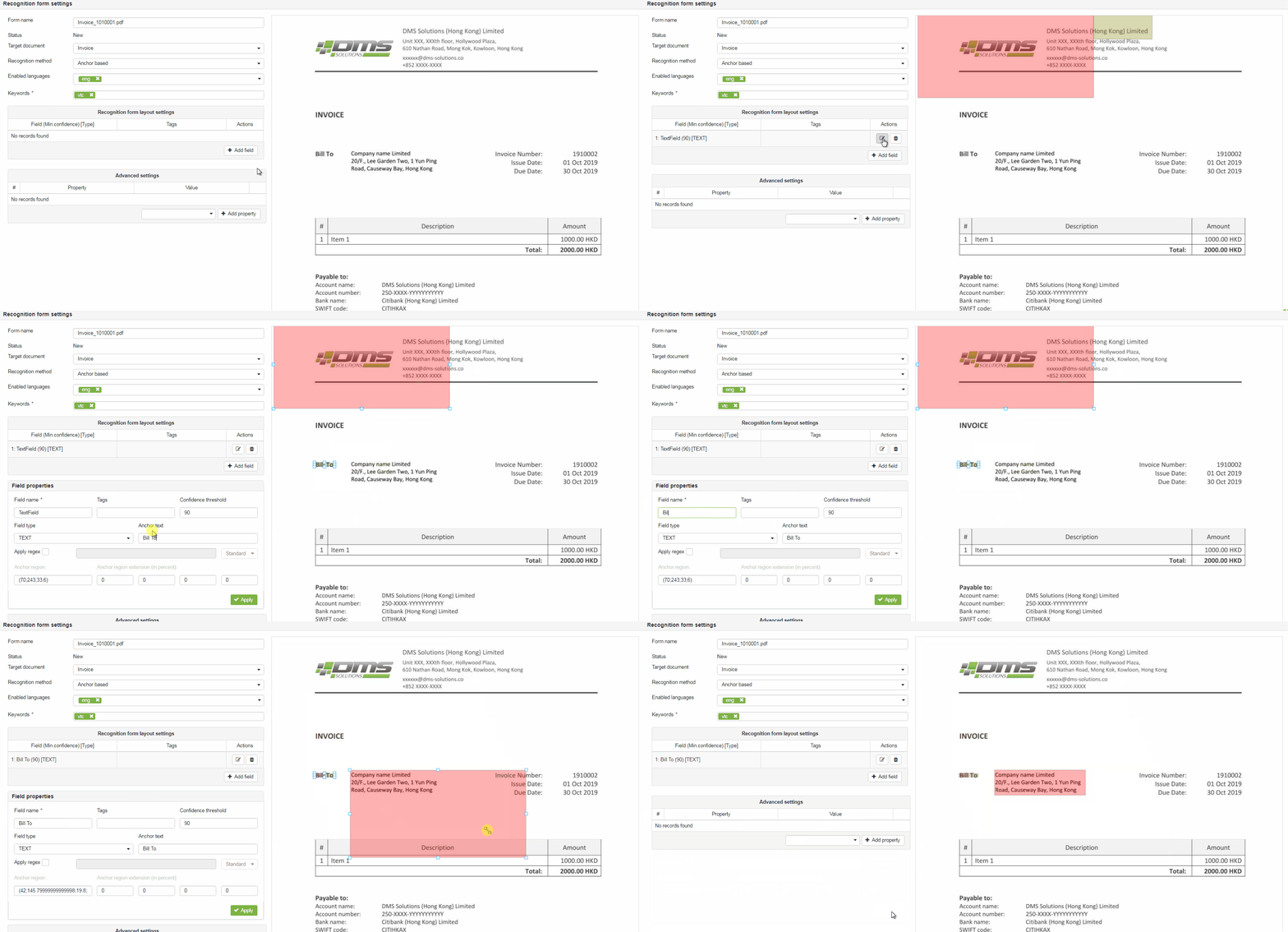
Multi-page recognition forms setup
Uploading a multi-page document sample allows a multi-page Recognition Rule to be configured. All steps for fields setup on several pages are the same as mentioned above.
Additionally settings listed below are available for pages after 1st page:

Apply a page-break before processing this page - this option works in the following way:
- when this option is enabled all fields defined on the current page are to be searched / located by the system from the new page of the document. As such all fields defined on the page with this option enabled behave like they were located on the first page.
- when this option is enabled for the specific page and no fields are defined on that page, but for previous and next pages fields defined - while processing documents system skips page on the target document in order to reflect page order of the multi-page recognition form. Otherwise system uses fields from the next page of the recognition form in order to locate them on the target document pages one-by-one.
Post-processing settings
The Post-processing settings section allows JavaScript-based post-processing to be applied to recognition results produced by the current Recognition Rule. For more details on the post-processing functionality see Recognition results post-processing page.
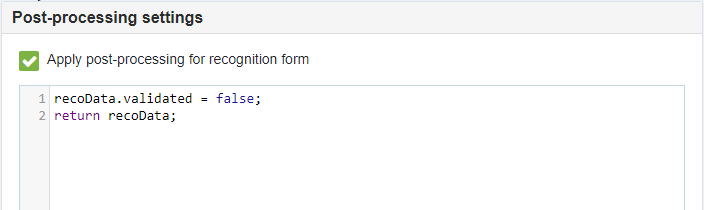
Apply post-processing for recognition form - defines whether to apply post-processing for the document recognition result when it was matched using the current RecoForm.
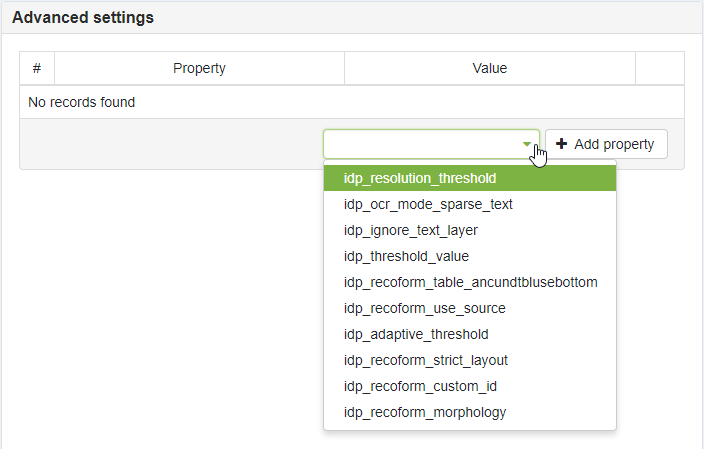
Advanced settings
The Advanced settings section allows additional Recognition Rule parameters to be added, edited, or removed. For more details on the advanced settings see Advanced recognition settings page.
Last modified: August 26, 2026