System configuration
The System Configuration page provides centralized administration of system-wide elDoc settings.
It contains configuration and status information for:
Changes made on this page affect the corresponding functionality across the elDoc installation.
Page controls:
 - switches page into the edit mode (respective access-rights are required)
 - saves settings (and validates LDAP credentials if any were provided)
 - reloads system configuration defined in the eldoc.conf file
License Configuration
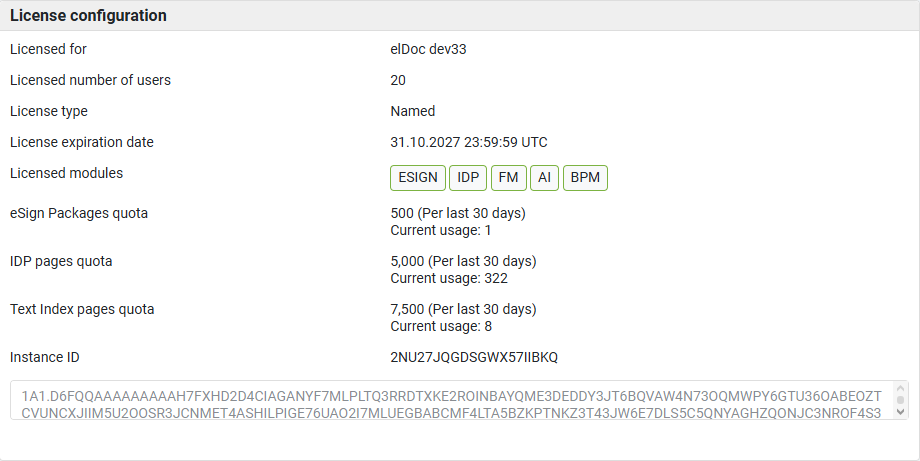
The License configuration section displays information about the license currently installed on the elDoc instance and allows the license code to be updated.
The following information is available:
- Licensed for - Displays the organization or environment for which the license was issued.
- Licensed number of users - Displays the maximum number of users permitted by the installed license.
- License type - Displays the user licensing model. Depending on the license, this can include models such as:
Named;
Concurrent.
- License expiration date - Displays the date and time when the current license expires.
- Licensed modules - Displays the elDoc modules and capabilities enabled by the installed license. Depending on the license, these can include:
ESIGN - eSignature;
IDP - AI Document Processing;
FM - AI File Management;
AI - AI/LLM capabilities;
BPM - Document Workflow Automation.
- eSign Packages quota - Displays the licensed number of eSignature Packages that can be processed during the applicable quota period, together with the current usage.
- IDP pages quota - Displays the licensed number of pages that can be processed by AI Document Processing during the applicable quota period, together with the current usage.
- Text Index pages quota - Displays the licensed number of pages that can be processed for text indexing during the applicable quota period, together with the current usage. Where quotas are calculated over the last 30 days, the displayed usage reflects the corresponding rolling 30-day period.
- Instance ID - Displays the unique identifier of the elDoc instance. The Instance ID is used when issuing or updating an elDoc license.
- License code - The license code is displayed in the License Configuration section and can be replaced when a new or updated license is provided.
License Installation and Update
To install or update a license:
Open the System Configuration page.
Locate the License configuration section.
Copy the Instance ID if a new license must be requested.
Provide the required information (see below) to the elDoc implementation partner or elDoc Support:
Instance ID
Company name
Contact person’s name
Contact person’s email and phone number
Obtain the license code issued for the corresponding instance.
Paste the license code into the License Configuration field.
Save the configuration.
After successful validation, the updated license information, enabled modules, expiration date, and applicable quotas are displayed.
Community license
The elDoc Community License includes the following features:
Licensed users: Limited to 3 named users
FileManager: Maximum of 100 files
eSign: Limited to 10 eSign Packages per month
BPM: New BPM workflows can only be created using a single form with Form ID
fd1IDP: Limited to 100 IDP pages per month. This limitation also applies if the IDP module is not licensed
- AI: Has no limitations
System Settings
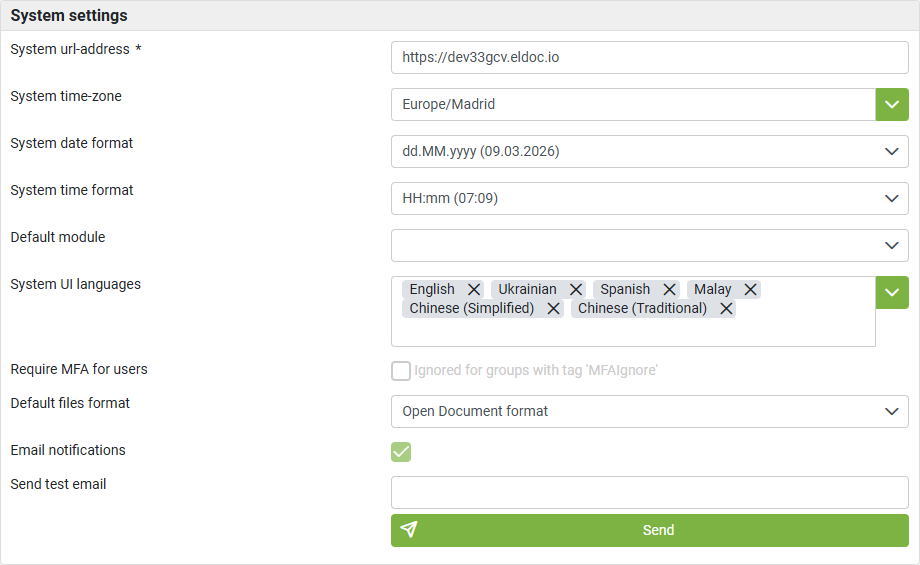
The System settings section contains general settings that define system-wide behavior and presentation.
- System URL address - Defines the base URL used to access the elDoc installation.
- System time zone - Defines the default system time zone. Date and time values presented by elDoc use the configured time zone where applicable.
- System date format - Defines the default format used to display dates throughout the user interface.
- System time format - Defines the default format used to display time values.
- Default module - Defines the module opened by default when no user-specific default module selection applies. The available modules depend on the installed license and enabled elDoc functionality.
- System UI languages - Defines the user-interface languages enabled for the elDoc installation. Only enabled languages are available for selection by users on the login page and through the Interface language menu.
Depending on the installed language packs, available languages can include:- English;
- Ukrainian;
- Spanish;
- Malay;
- Simplified Chinese;
- Traditional Chinese.
- Additional interface languages are added continuously as the platform evolves.
- Require MFA for users - Enforces Multi-Factor Authentication (MFA) for users. elDoc MFA is based on Time-Based One-Time Passwords (TOTP).
Users belonging to groups configured with theMFAIgnoretag are excluded from the mandatory MFA requirement.
When mandatory MFA is enabled, users who have not yet configured MFA must activate it before continuing to use the system. - Default files format - Defines the default format used when elDoc creates supported office documents. This can be an Open Document or Microsoft Office document format.
- Email notifications - Enables or disables email notifications generated by elDoc. SMTP transport and other mail-server connection parameters are defined in the corresponding system configuration.
- Send test email - Allows an administrator to enter an email address and send a test message. This can be used to verify that the system email configuration is working correctly.
AI Settings
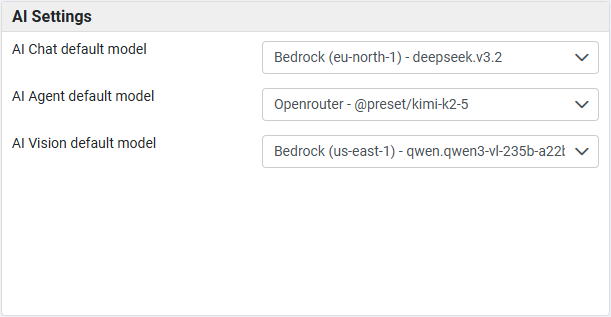
The AI Settings section defines the default AI models used by the main AI capabilities across elDoc.
Only models configured and available through the corresponding AI model integrations can be selected.
For information about connecting models, see: Admin Guide → AI/LLM Configuration → AI Model Integration
- AI Chat default model - Defines the default model used for GenAI Chat. Users can select another available chat model where model selection is enabled, but this setting provides the system-wide default.
- AI Agent default model - Defines the default model used by AI Agents. The selected model must support the capabilities required by the corresponding Agent scenarios, including tool usage where applicable.
- AI Vision default model - Defines the default Vision-Language model used when elDoc needs to process or understand visual content. This can include:
- images;
- scanned documents;
- visually structured documents;
- image-based PDFs;
- other content requiring Vision-Language processing.
AI Document Processing Settings
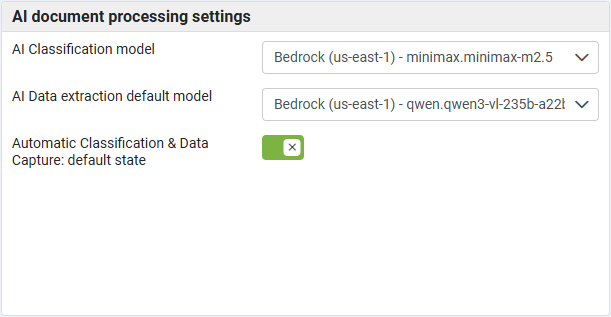
The AI document processing settings section defines system-wide AI models and behavior used by the AI Document Processing module.
- AI Classification model - Defines the default AI model used for AI-based document classification. The model analyzes document content and determines the applicable Recognition Rule or document type according to the configured AI Document Processing logic.
- AI Data extraction default model - Defines the default AI model used for AI-powered structured data extraction. This model is used when a more specific model is not assigned by the corresponding Recognition Rule or other processing configuration.
- Automatic Classification & Data Capture: default state - Defines the default state of Automatic Classification & Data Capture functionality. When enabled, AI Document Processing can automatically perform document classification and data extraction according to the configured processing rules.
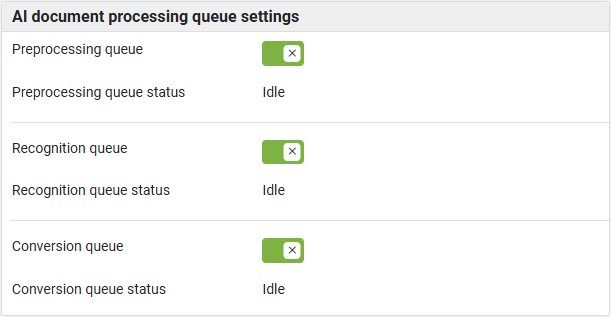
AI Document Processing Queue Settings
AI Document Processing uses separate processing queues for the main stages of the document-processing pipeline.
The AI document processing queue settings section allows administrators to enable or disable individual queues and monitor their current status.
- Preprocessing queue - Controls the preprocessing queue. Preprocessing prepares uploaded documents for subsequent processing and recognition.
- Preprocessing queue status - Displays the current state of the preprocessing queue.
- Recognition queue - Controls the document recognition and data-extraction queue. This queue processes documents according to the configured Recognition Rules and processing methods.
- Recognition queue status - Displays the current state of the recognition queue.
- Conversion queue - Controls the document conversion queue. Conversion is used where AI Document Processing results must be converted into elDoc workflow according to the configured Recognition Rule.
- Conversion queue status - Displays the current state of the conversion queue.
Individual queues can be disabled temporarily when processing must be suspended without shutting down the complete elDoc instance.
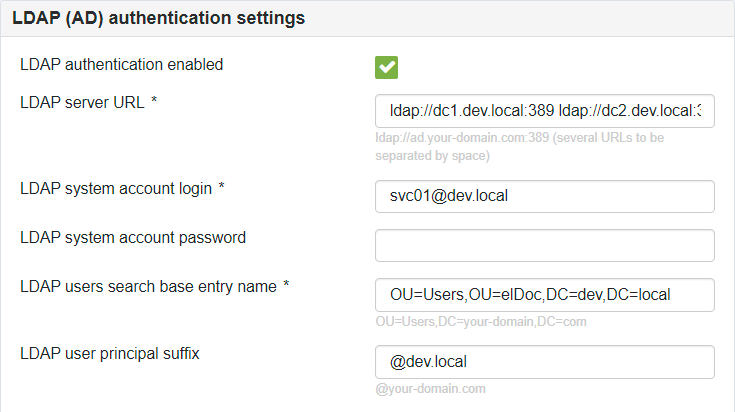
LDAP (AD) Authentication Settings
The LDAP (AD) authentication settings section provides configuration options for integrating elDoc with an LDAP-compatible directory, including Microsoft Active Directory, for user authentication.
NOTE: A corresponding user profile must exist in elDoc before the user can authenticate using LDAP credentials. LDAP synchronization can be used to automatically create and maintain user profiles.
- LDAP authentication enabled - Enables or disables LDAP authentication.
- LDAP server URL - Defines the LDAP server URL, including the domain name or IP address and port. Multiple URLs can be specified, separated by whitespace, to provide authentication failover when one of the LDAP servers is unavailable.
- LDAP system account login - Defines the LDAP service account used by elDoc to perform directory queries. The account normally requires read-only access to the relevant directory structure.
- LDAP system account password - Defines the password of the LDAP service account. After it is entered, the password is stored securely by elDoc and does not need to be entered again during subsequent configuration updates.
- LDAP users search base entry name - Defines the Distinguished Name (DN) of the directory entry from which elDoc searches for users during authentication.
- LDAP user principal suffix - Optionally defines a suffix automatically appended to the entered login.
For example:@example.com
can be configured when LDAP authentication expects a principal in the form:[email protected]
When LDAP authentication is enabled, elDoc validates the configured LDAP connection settings when the system configuration is saved and reports a configuration or connectivity problem when validation fails.
LDAP (AD) Synchronization Settings
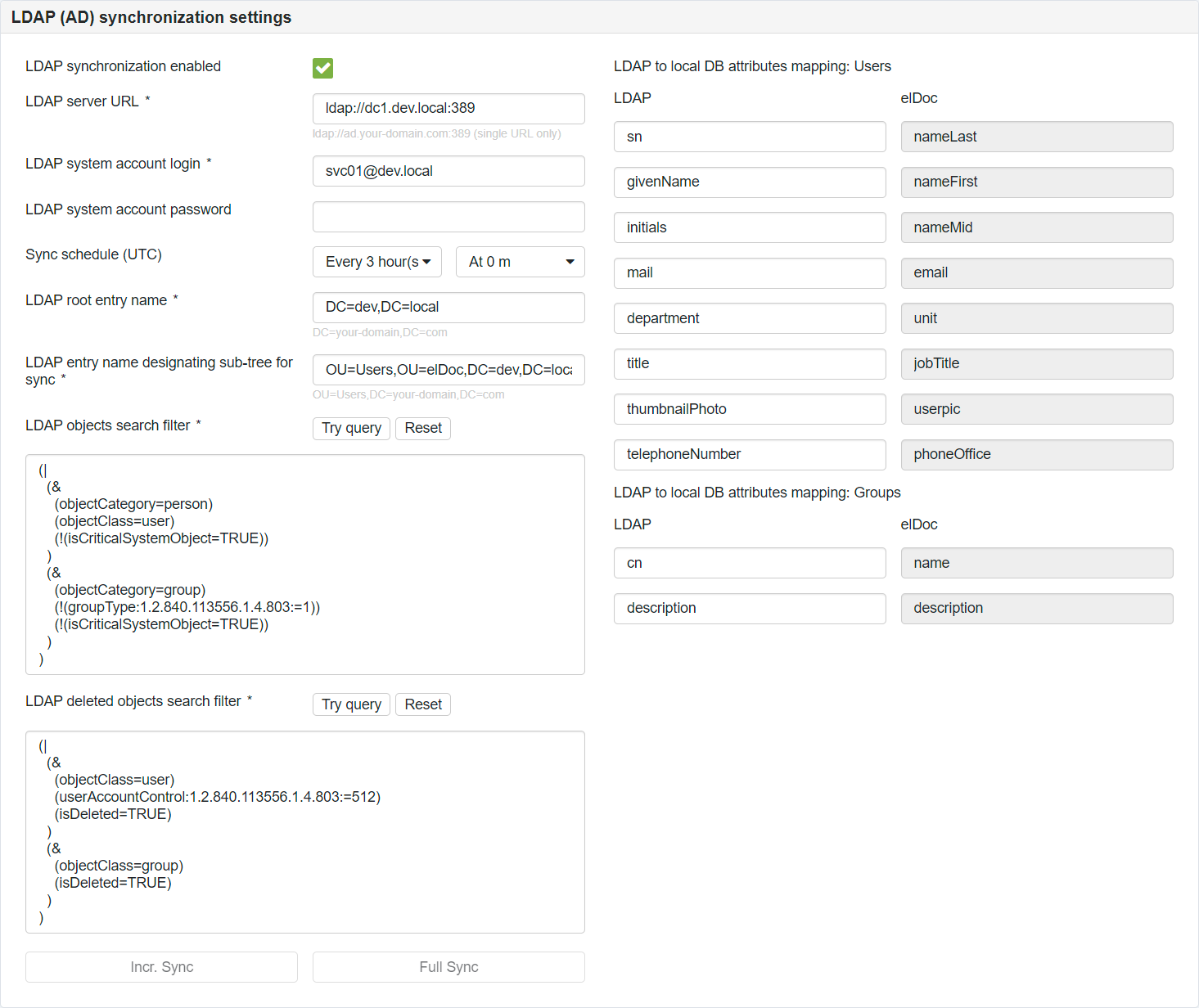
The LDAP (AD) synchronization settings section configures synchronization of users and groups from an LDAP directory into the internal elDoc directory.
LDAP synchronization can automatically create and update elDoc user and group records based on directory data.
NOTE: Embedded/nested LDAP groups are not processed as part of group synchronization.
elDoc supports both full and incremental synchronization. Incremental synchronization is performed by default.
Incremental synchronization uses LDAP change information, including the Highest Committed USN, to identify objects changed since the previous synchronization.
The directory InvocationID is also monitored. If it changes, a new full synchronization (initiated manually) is required before scheduled incremental synchronization can continue.
- LDAP (AD) user synchronization enabled - Enables or disables synchronization of LDAP users and groups.
- LDAP server URL - Defines the LDAP server URL-address (domain name or ip-address and port) used for synchronization. Single URL to be specified only.
- LDAP system account login - Defines the service account used by elDoc to access LDAP directory information (requires read-only access).
- LDAP system account password - Defines the password of the LDAP synchronization service account. After it is entered, the password is stored securely by elDoc and does not need to be entered again during subsequent configuration updates.
- Sync schedule (UTC) - Defines the schedule for automatic LDAP synchronization. The schedule uses UTC time.
- LDAP root entry name - Defines the root Distinguished Name of the LDAP directory.
- LDAP entry name designating sub-tree for sync - Defines the top-level LDAP entry used to limit the synchronization scope. Only entries located below this point in the LDAP hierarchy are synchronized. Usually matches "LDAP users search base entry name" value of the LDAP (AD) authentication settings
- LDAP objects search filter - Defines the LDAP query used to identify users and groups that must be synchronized.
Use Try query to test the filter and review the matching objects before performing synchronization.
Use Reset to restore the default filter.
It is recommended to coordinate complex LDAP filters with the organization's LDAP or Active Directory administrator. - LDAP deleted objects search filter - Defines the LDAP query used to detect directory objects that have been deleted and reflect those changes in the elDoc directory.
Use Try query to test the filter and review the matching objects before performing synchronization.
Use Reset to restore the default filter.
It is recommended to coordinate complex LDAP filters with the organization's LDAP or Active Directory administrator. - LDAP to Local DB Attributes Mapping: Users - Defines how LDAP user attributes are mapped to corresponding elDoc user-profile properties.
- LDAP to Local DB Attributes Mapping: Groups - Defines how LDAP group attributes are mapped to corresponding elDoc group properties.
A practical way to manage elDoc roles through Active Directory is to assign elDoc roles to synchronized groups and then manage group membership directly in Active Directory. - Incremental Sync - Runs an incremental synchronization immediately.
- Full Sync - Runs a full synchronization immediately.
A full synchronization is required for the initial synchronization and after certain LDAP directory changes that invalidate incremental synchronization state.
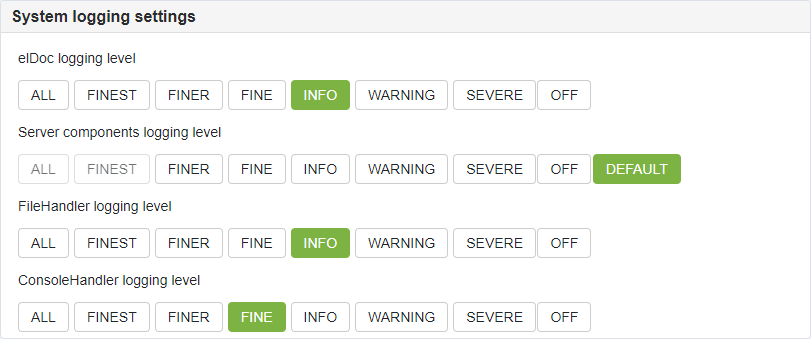
System Logging Settings
The System logging settings section allows administrators to configure the logging levels used by elDoc.
Logging levels control the amount and detail of information written to the system logs.
For production environments, it is recommended to retain the standard production logging levels unless additional diagnostic information is required.
More verbose logging can significantly increase the amount of generated log data and should normally be enabled temporarily for troubleshooting purposes.
Configuration Parameters
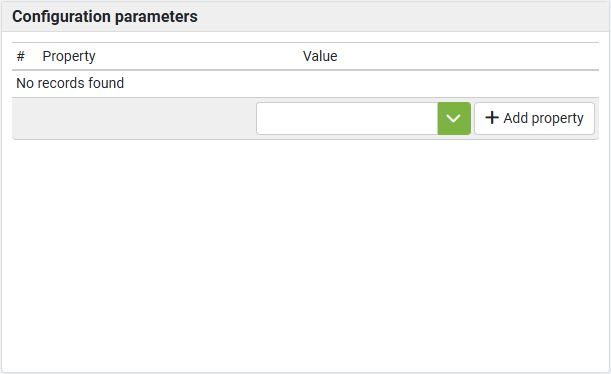
The Configuration parameters section provides a mechanism for defining additional system configuration properties.
Properties can be added as name/value configuration entries where supported by the corresponding elDoc functionality.
To add a property:
click Add property;
enter the required property name and value;
confirm the new entry;
save the system configuration.
This section is intended for additional configuration parameters that are not represented by dedicated controls elsewhere on the page.
Only documented or specifically provided elDoc configuration properties should be added. Incorrect or unsupported values can affect system behavior.
Additional Settings
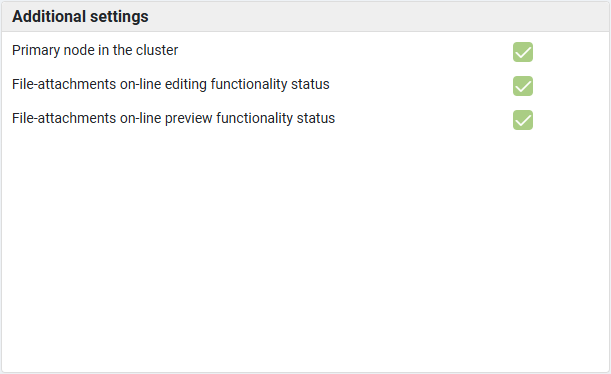
The Additional settings section displays system and service-related state information.
- Primary node in the cluster - Indicates whether the current elDoc instance is configured as the primary node in a clustered deployment. Some cluster-wide processing functions are performed only by the primary node.
- File-attachments online editing functionality status - Indicates the availability of the online document-editing functionality. An enabled/healthy status indicates that the service required for online editing is available to elDoc.
- File-attachments online preview functionality status - Indicates the availability of online file-preview functionality. An enabled/healthy status indicates that the corresponding preview service is available.
These indicators provide administrators with a quick view of the current state of important system-level services.
Configuration Scope
Settings on the System Configuration page are primarily system-wide.
Administrators should therefore consider the impact of changes on all users and modules before modifying configuration values.
In particular:
changing enabled UI languages affects the languages available throughout the installation;
changing AI default models affects the corresponding AI functionality system-wide;
disabling an AI Document Processing queue suspends that processing stage;
changing LDAP settings affects authentication or directory synchronization;
changing MFA requirements affects user authentication;
changing system date, time, or time-zone settings affects how corresponding values are presented throughout elDoc.
Configuration changes should be performed by authorized system administrators only.
Last modified: August 29, 2026