User Interface
Home Page
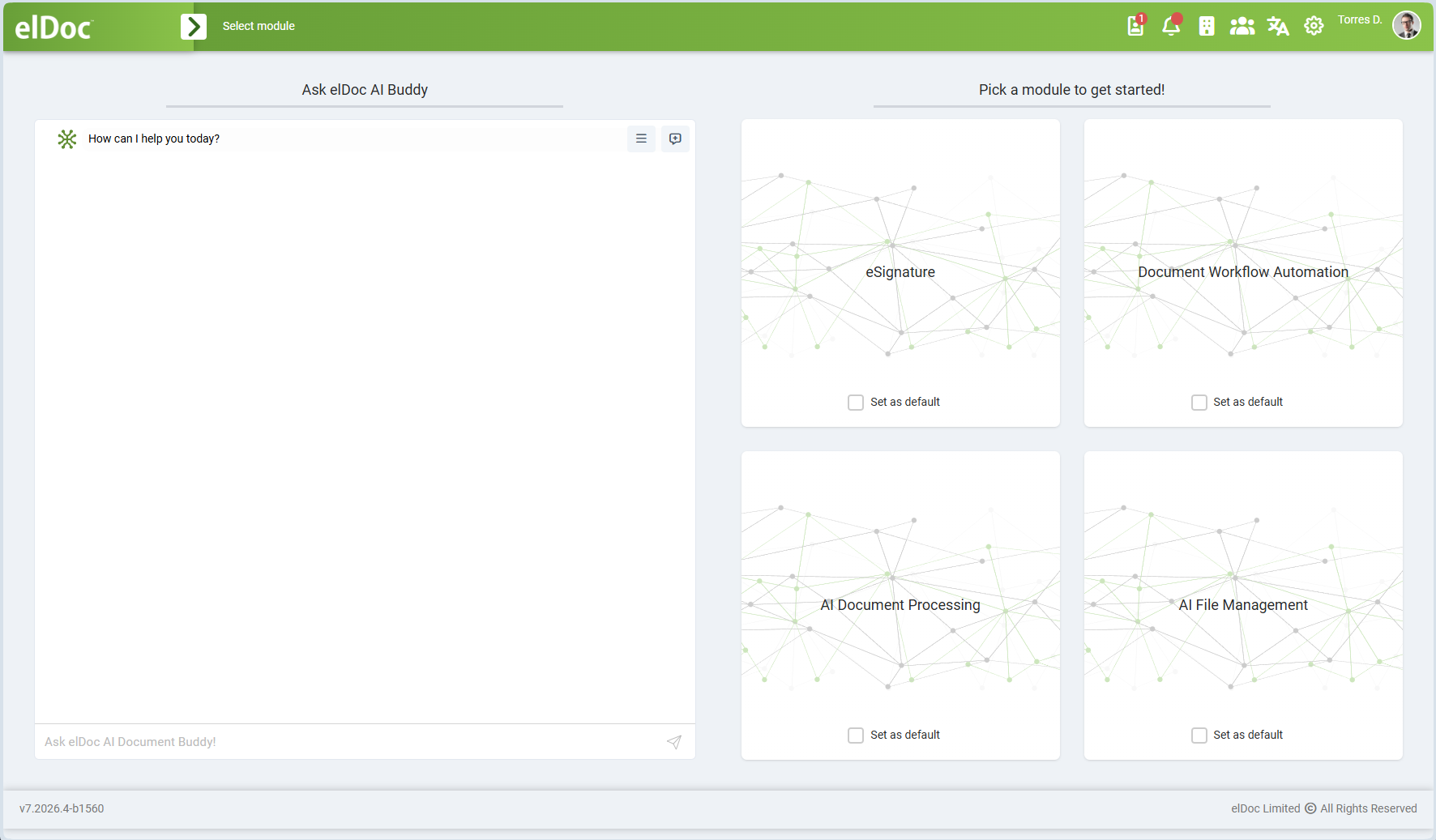
The elDoc Home page provides a unified entry point to the platform. It combines direct access to elDoc AI Buddy with module selection, allowing users to either interact with enterprise content through GenAI or open the functional module required for their work.
elDoc AI Buddy
The Ask elDoc AI Buddy panel provides immediate access to elDoc GenAI Chat directly from the Home page.
Users can interact with AI Buddy using natural-language requests to search, analyze, summarize, and work with information available in elDoc according to their access permissions.
AI Buddy can use elDoc AI capabilities, including enterprise search, semantic retrieval, and Agentic RAG, to provide context-aware responses based on documents and information available to the current user.
The chat panel is available without opening a specific functional module, making AI-assisted interaction accessible immediately after entering the system.
Module Selection
The Pick a module to get started! section provides access to the main functional modules available in elDoc.
The available modules include:
eSignature
Provides functionality for electronic signing of documents, signature requests, signature workflows, and management of electronically signed documents.
Document Workflow Automation
Provides document-centric workflow automation capabilities for creating, processing, approving, signing off, following up, and managing documents throughout their business lifecycle.
AI Document Processing
Provides AI-powered document processing capabilities for transforming scanned and digitally generated documents into structured information using OCR, document classification, data extraction, and AI-based document understanding.
AI File Management
Provides secure file and folder management enhanced with GenAI capabilities, including document indexing, enterprise search, semantic retrieval, GenAI Chat, Agentic RAG, AI Agents, sharing, collaboration, permissions, and version control.
Selecting a Default Module
Each module includes a Set as default option.
When a module is set as the default, elDoc can open that module automatically for the user instead of requiring module selection each time.
This allows users who primarily work within a particular functional area to access their preferred workspace more quickly.
The default module can be changed according to the user's working preferences.
Unified Access to elDoc Capabilities
The Home page brings together the two primary ways of working with elDoc:
AI-first interaction through elDoc AI Buddy;
module-based interaction through the dedicated eSignature, Document & Workflow Automation, AI Document Processing, and AI File Management workspaces.
This provides users with a single starting point for accessing both traditional document-management functionality and GenAI-powered capabilities within the elDoc platform.
The elDoc interface provides you with 3 modules to work with: Document & Workflow Automation, AI Document Processing, and File Management.
By activating the "Set as default" option for a module, you can save your initial preference. The next time you log into elDoc, this module will be displayed as your preferred choice for work. However, you retain the flexibility to navigate to any other module at any time by returning to the main page.
The main panel menu in elDoc contains essential control features that apply to all elDoc modules.
| Switching to acting as deputy |
| Reminders |
| CRM module |
| System Users |
| Interface language |
| System settings |
 | User profile |


Last modified: August 25, 2026