User profile
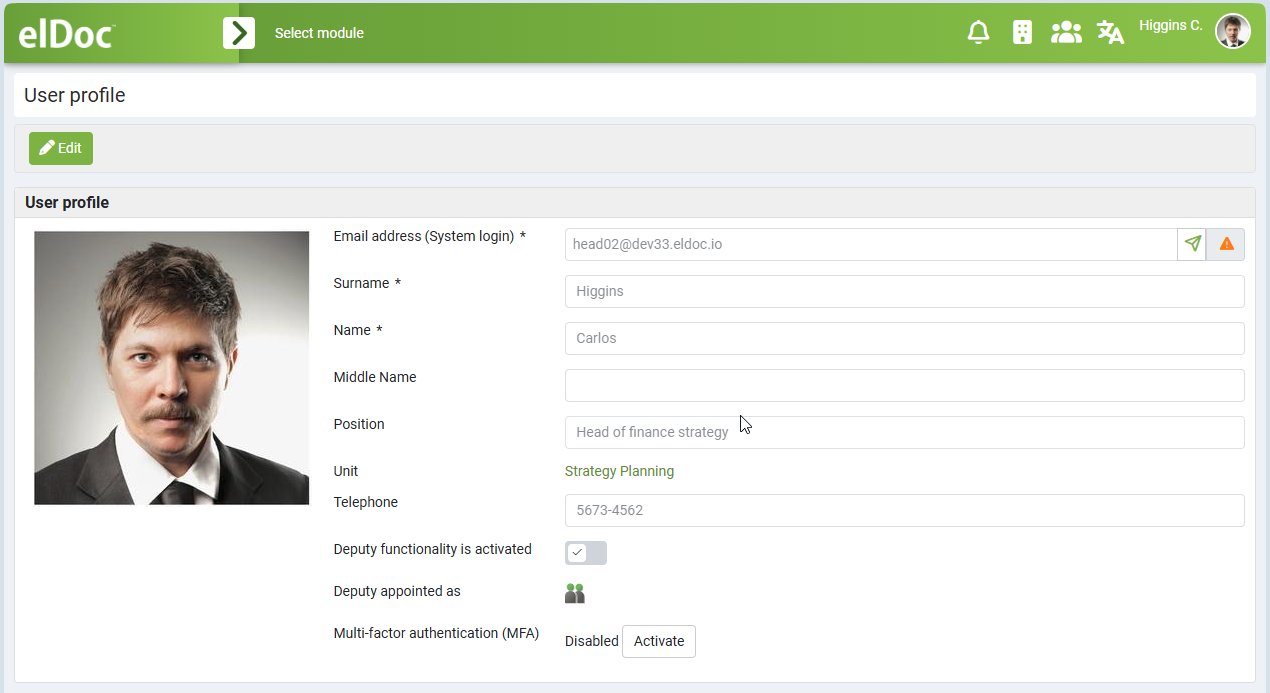
Each elDoc user has a personal User Profile containing account and contact information associated with their user account.
Depending on the account configuration, the profile can include:
profile photo;
email address and/or system login;
surname;
first name;
middle name;
job title;
organizational unit;
telephone number;
deputy assignment status;
information about the currently assigned deputy.
For accounts synchronized with an external directory, some profile information can be provided and maintained by the corresponding directory service.
Use Edit to modify the available profile information, Save to apply changes, or Cancel to discard unsaved changes.
Email Address Confirmation
elDoc supports email address confirmation to verify that the email address associated with the user account is valid and accessible by the user.
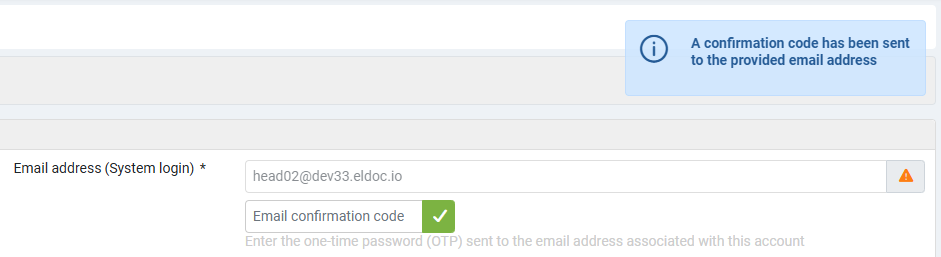
An email address that has not yet been confirmed is marked with an orange warning triangle next to the email field.
To confirm the email address:
Open the User Profile page and switch to edit mode.
Click the email confirmation button next to the email address.
elDoc sends a one-time confirmation code to the specified email address.
A notification confirms that the verification code has been sent.
Enter the received code into the Email confirmation code field.
Confirm the code using the corresponding confirmation button.
Save the profile if required.
The confirmation code is a one-time password (OTP) sent to the email address associated with the account.
After successful verification, the email address is marked as confirmed and the orange warning indicator is removed.
If the email address is changed later, the new address must be confirmed separately.
Multi-Factor Authentication (MFA)
To increase account security, users can enable Multi-Factor Authentication (MFA), also commonly known as Two-Factor Authentication (2FA).
elDoc uses Time-Based One-Time Passwords (TOTP) and works with standard authenticator applications that support the TOTP algorithm.
Enabling MFA
To enable MFA:
Click Activate in the MFA section of the User Profile.
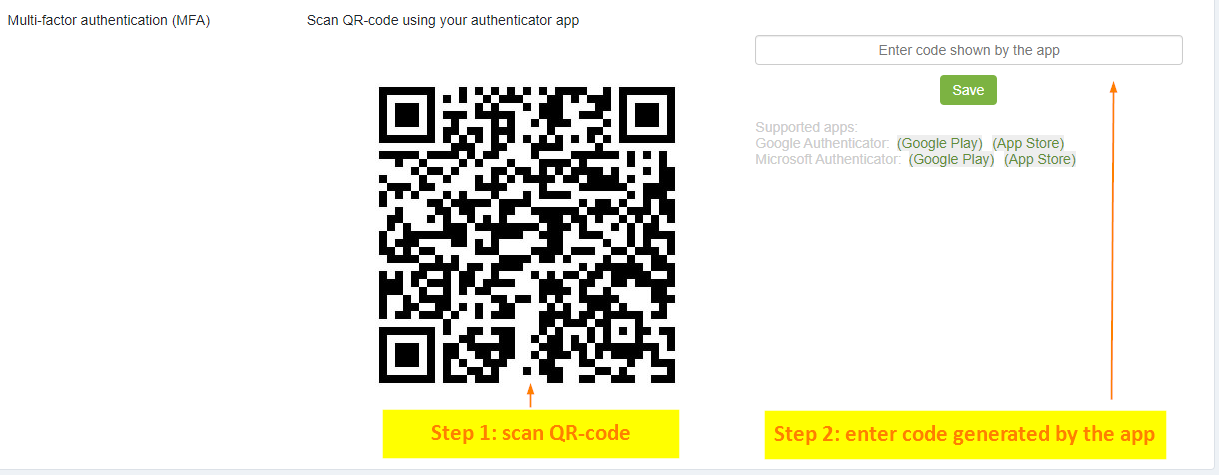
Scan the displayed QR code using a TOTP-compatible authenticator application (or enter displayed code manually).
The elDoc account is added to the authenticator application.
Enter the verification code generated by the authenticator application into the corresponding field.
Click Save to complete MFA activation.
After MFA is activated, the authenticator application generates temporary verification codes that are required during authentication according to the configured system security policy.
Disabling MFA
To disable MFA:
Click Deactivate in the MFA section.
Confirm the MFA deactivation in the confirmation dialog.
Mandatory MFA
System administrators can configure MFA as mandatory.
When mandatory MFA is enabled and a user has not yet configured MFA, the user is redirected to the User Profile page after signing in and must complete MFA activation before accessing other elDoc functionality.
Supported Authenticator Applications
Any authenticator application supporting the TOTP standard can be used.
Common examples include:
Google Authenticator;
Microsoft Authenticator.
Password Update
Users can update their password from the User Profile page.
The new password must satisfy the password complexity requirements configured for the elDoc environment.
By default, the following requirements apply:
it must not match any of the user's last five passwords;
it must contain at least 8 characters;
it must contain at least 1 uppercase letter (
A-Z);it must contain at least 1 lowercase letter (
a-z);it must contain at least 1 digit (
0-9);it must contain at least 1 special character, for example
!@#$%^&*.
Users are prompted to change passwords that have not been updated within the configured password validity period. By default, this period is 12 months.
Last modified: August 26, 2026