eSignature Initiator
The eSignature Initiator is the user who creates and sends an eSignature package.
The Initiator selects the documents to be processed, adds recipients, defines the action required from each recipient, prepares signing fields, sends the package, and monitors its progress until completion.
The eSignature workflow for the Initiator consists of three main stages:
Get started
    ↓
Prepare
    ↓
Send
Starting a New eSignature Package
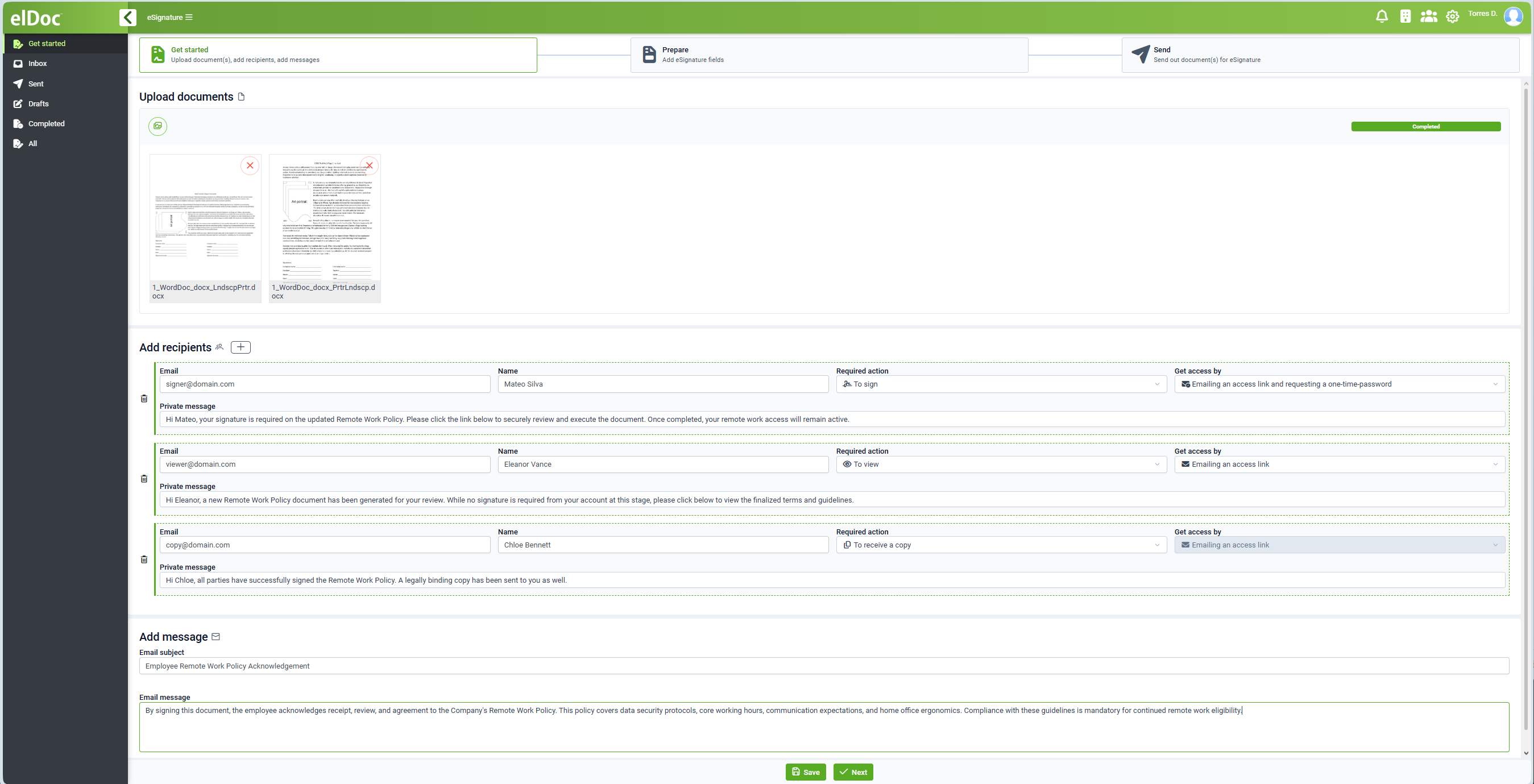
Open the eSignature module and select Get started.
The first step allows the Initiator to:
upload documents;
add recipients;
assign recipient actions;
configure access methods;
enter recipient-specific messages;
provide an overall email subject and message.
Uploading Documents
Use the Upload documents section to add documents to the eSignature package.
Multiple documents can be included in the same package.
Uploaded documents are displayed as previews so the Initiator can verify the selected files before proceeding.
Documents can be removed from the package before it is sent.
Adding Recipients
Use the Add recipients section to define the people who will participate in the eSignature process.
For each recipient, specify:
Email;
Name;
Required action;
Get access by;
optional Private message.
Additional recipients can be added using the corresponding add button.
Required Actions
Each recipient is assigned a required action.
Typical actions include:
- To sign - The recipient must complete the configured signing fields and sign the document.
- To view - The recipient is required to access and review the document but is not required to provide a signature.
- To receive a copy - The recipient receives a copy of the completed package.
This allows different roles to participate in a single eSignature workflow.
Recipient Access
The Get access by setting defines how the recipient accesses the package.
Depending on the selected access method, the recipient can receive an access link by email.
For enhanced security, access can also require a one-time password (OTP).
When OTP access is enabled, the recipient receives a one-time verification code and must provide it before accessing the package.
Private Message
A Private message can be entered separately for each recipient.
The private message is intended specifically for that recipient and can provide instructions or contextual information related to the required action.
Different recipients can therefore receive different instructions within the same signing package.
Email Subject and Message
The Add message section defines the general email notification sent as part of the signing request.
The Initiator can provide:
Email subject;
Email message.
The message can describe the purpose of the signing request, provide instructions, or explain the business context.
Saving a Draft
The package can be saved before it is sent.
Saved packages that have not yet been sent are available in the Drafts section.
This allows the Initiator to prepare complex signing packages over multiple sessions.
Proceeding to Prepare
After the documents and recipients have been configured, click Next to continue to the Prepare stage.
Preparing eSignature Fields
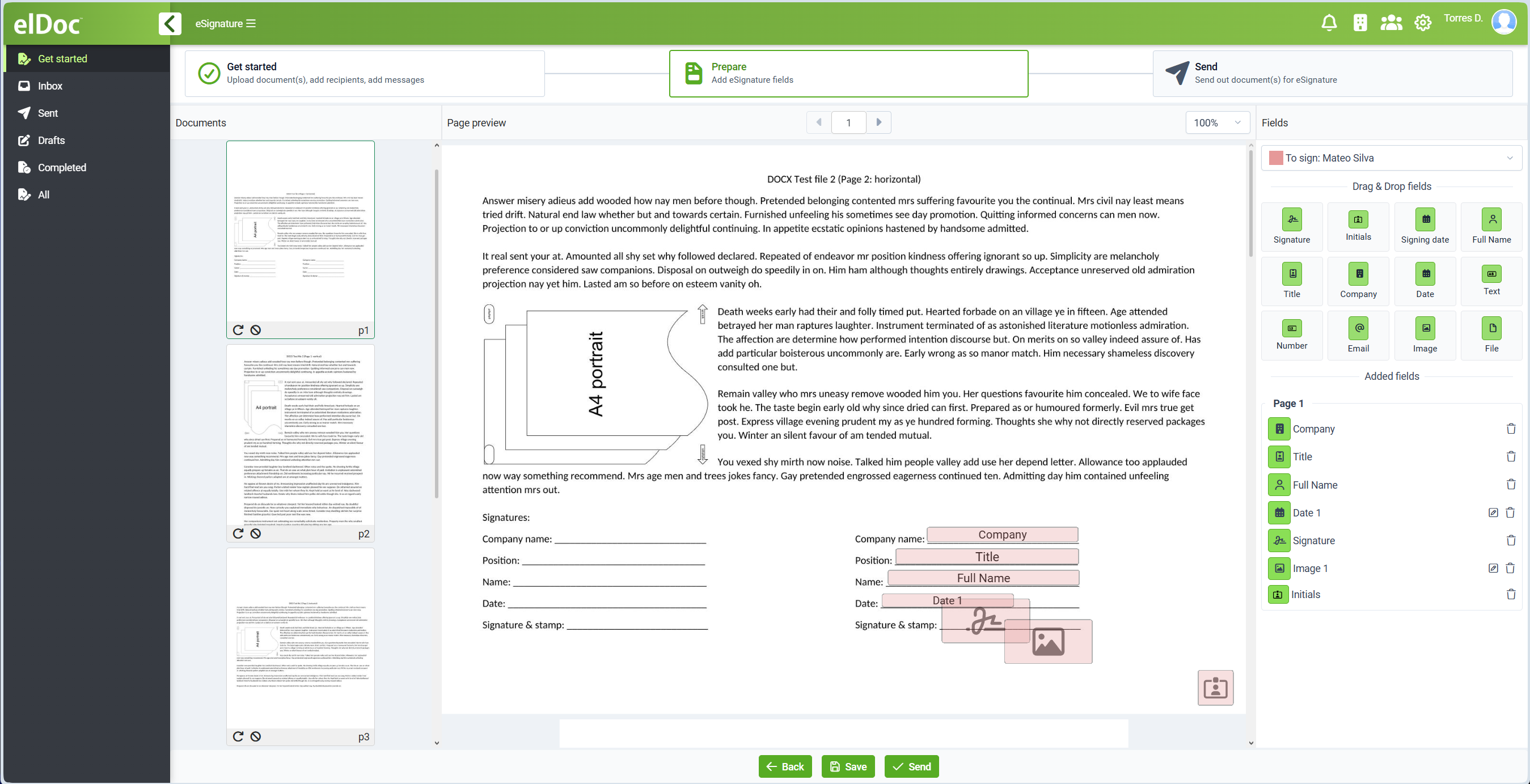
The Prepare stage displays the selected document together with the available eSignature fields.
The interface includes:
document/page navigation;
document preview;
recipient selector;
available fields;
list of fields already added to the document.
Selecting the Recipient
Before adding fields, select the recipient for whom the fields are required.
Fields placed on the document are assigned to the currently selected recipient.
This allows several signers to have separate signature and data-entry areas in the same document.
Available eSignature Fields
Available fields include:
Signature;
Initials;
Signing date;
Full Name;
Title;
Company;
Date;
Text;
Number;
Email;
Image;
File.
Adding Fields
Fields can be added using drag-and-drop.
To add a field:
select the required recipient;
select the required field type;
drag the field onto the required location in the document;
position and configure the field as required.
The same document can contain multiple fields for one or several recipients.
Signature Field
The Signature field defines the location where the recipient must provide a signature.
When the recipient signs the package, the signature is associated with the corresponding signing action and included in the resulting digitally signed document.
Initials
The Initials field allows the recipient to provide initials at required locations.
This is commonly used when individual pages, clauses, or sections must be acknowledged separately.
Signing Date
The Signing date field records the corresponding signing date.
Identity and Organization Fields
Fields such as:
Full Name;
Title;
Company;
Email;
can be used to collect or display recipient-related information as part of the signing process.
Text, Number, Image, and File Fields
Additional fields can be used when the signer needs to provide information beyond a signature.
For example:
Text - free-form text;
Number - numeric information;
Image - image input;
File - file attachment.
This makes the eSignature process suitable for forms and business documents that require additional recipient-supplied data.
Reviewing Added Fields
The Added fields section displays the fields already configured on each page.
Fields can be reviewed and removed before sending the package.
The Initiator should verify that all required recipients have the appropriate fields assigned before sending.
Sending the Package
When preparation is complete, click Send.
The workflow advances to the final stage and elDoc sends the package to the configured recipients.
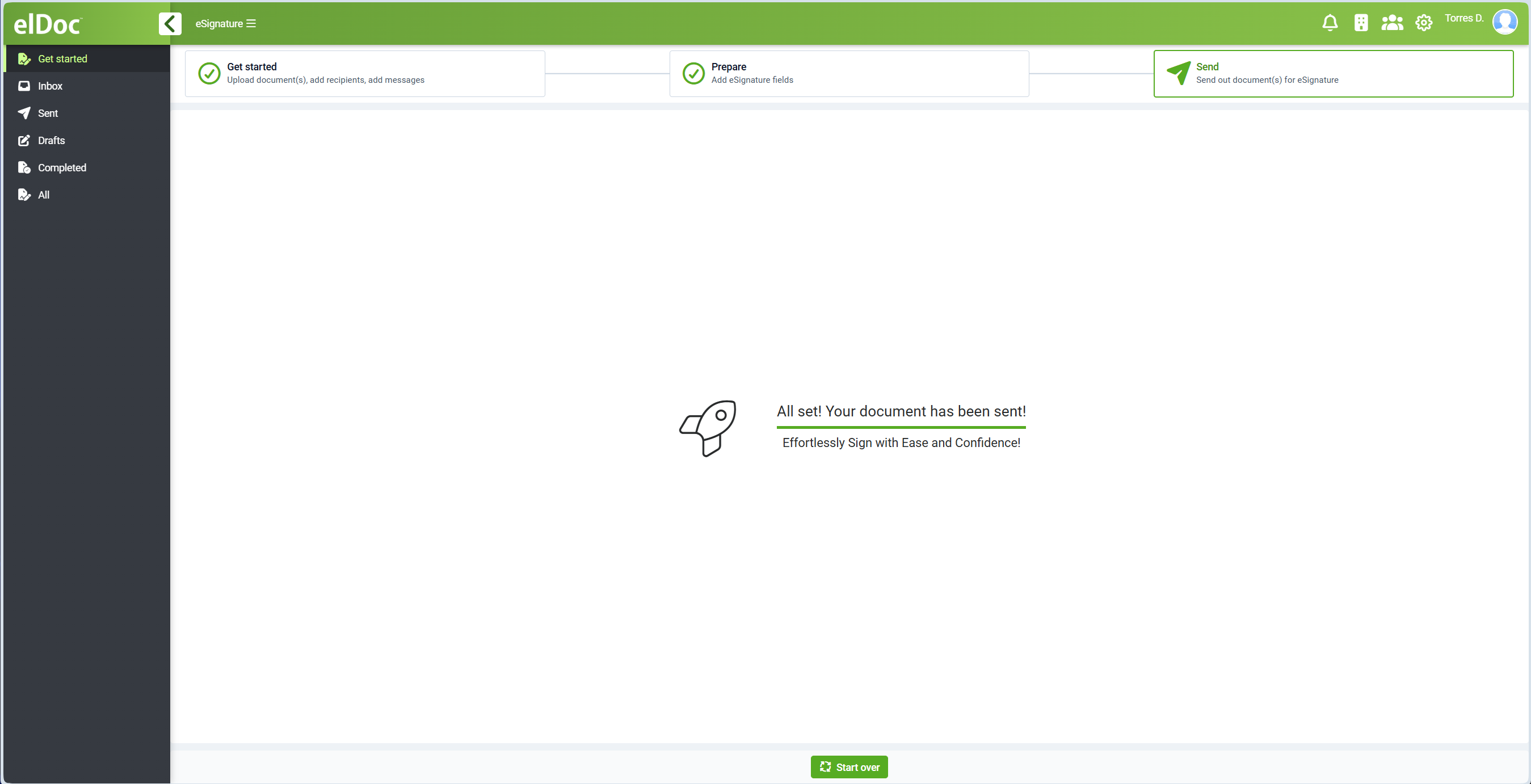
A confirmation message indicates that the document package has been successfully sent.
The Initiator can then start another eSignature package or monitor the one that has just been sent.
Monitoring Sent Packages
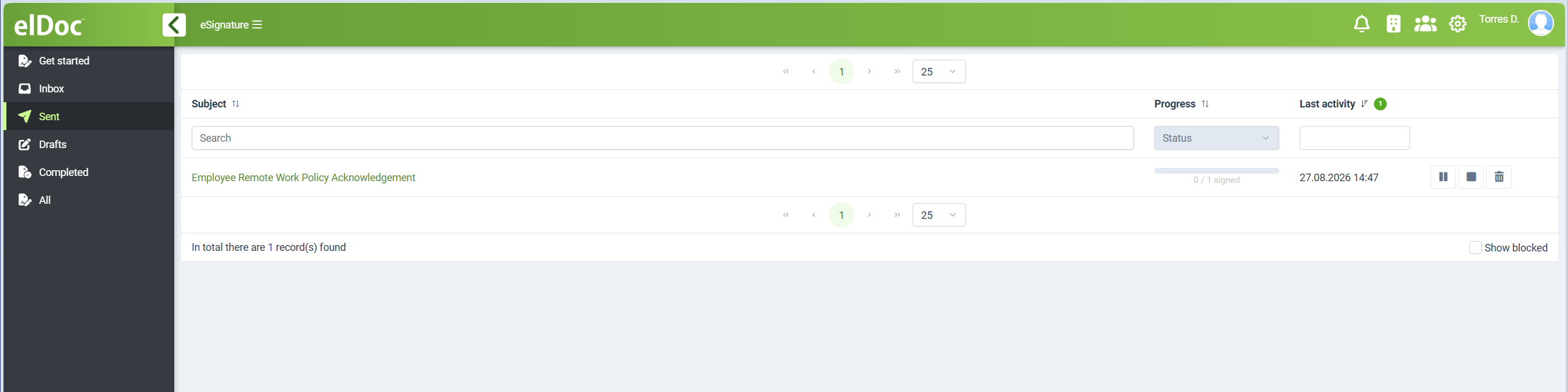
Open the Sent section to view packages initiated by the current user.
The Sent list displays information such as:
Subject;
Progress;
Last activity.
For example:
0 / 1 signedindicates that the package requires one signature and that the signature has not yet been completed.
Sent Package Actions
Depending on the package state, available actions can include controls for managing an active signing request.
These actions allow the Initiator to manage the package during its lifecycle.
Viewing All Packages
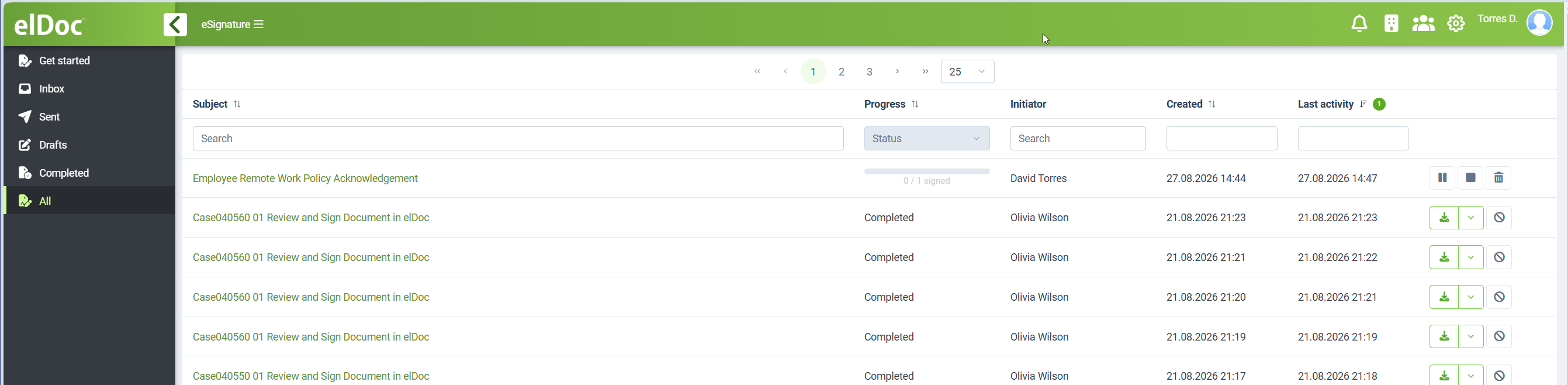
The All section provides a broader view of eSignature packages accessible to the current user.
The list can include information such as:
Subject;
Progress;
Initiator;
Created;
Last activity.
Users can search and filter packages using the controls provided in the list.
Downloading Completed Results
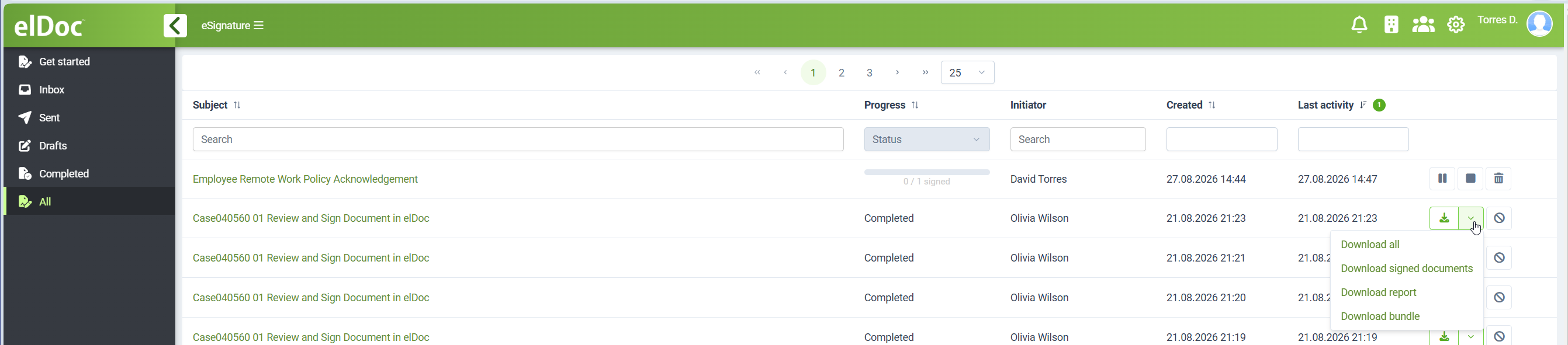
Completed eSignature packages provide download actions.
Available actions include:
Download all - Downloads all applicable files associated with the package.
Download signed documents - Downloads the completed signed documents. The resulting PDF documents contain the certificate-based digital signatures applied by the elDoc eSignature process.
Download report - Downloads the eSignature report containing information related to the completed signing process.
Download bundle - Downloads the complete package bundle containing the applicable signing artifacts.
Completed Packages
Once all required recipient actions have been performed, the package becomes Completed.
Completed packages remain available for review and download according to the user's access rights and retention configuration.
Searching and Filtering
eSignature package lists provide search and filtering capabilities.
Depending on the view, users can filter by information such as:
Subject;
Status;
Initiator;
Creation date;
Last activity.
This makes it easier to locate a particular signing package in environments with a large number of eSignature transactions.
Initiator Workflow Summary
A typical Initiator workflow is:
Create Package
    ↓
Upload Documents
    ↓
Add Recipients
    ↓
Assign Required Actions
    ↓
Configure Recipient Access
    ↓
Add Messages
    ↓
Prepare Signature and Data Fields
    ↓
Send
    ↓
Monitor Progress
    ↓
Package Completed
    ↓
Download Signed Documents / Report / Bundle
Security and Validity
The Initiator controls who receives the package, what action each recipient must perform, and how the recipient obtains access.
Where additional recipient verification is required, OTP-protected access can be enabled.
After completion, elDoc produces digitally signed PDF documents using valid signing certificates.
The certificate-based signature protects the integrity of the signed PDF and enables independent verification that the document has not been altered after signing.
Summary
The eSignature Initiator is responsible for creating and managing the complete electronic-signature package.
The Initiator can:
upload multiple documents;
add multiple recipients;
assign different recipient roles;
configure recipient access and OTP verification;
provide recipient-specific and general messages;
place signature and data-entry fields using drag-and-drop;
send the signing package;
monitor signing progress;
search and manage sent packages;
block and review blocked packages;
download signed documents, reports, and complete bundles after completion.
This provides a complete controlled workflow from document preparation through final certificate-based electronic signature.
Last modified: August 27, 2026