eSignature Signer
The eSignature Signer is a recipient who has been assigned the To sign action within an elDoc eSignature package.
The Signer receives a secure invitation, opens the package, completes the fields assigned by the Initiator, reviews the document, and submits the final signature.
Depending on the access settings configured by the Initiator, the Signer may also be required to verify access using a one-time password (OTP) sent by email.
Receiving an eSignature Request
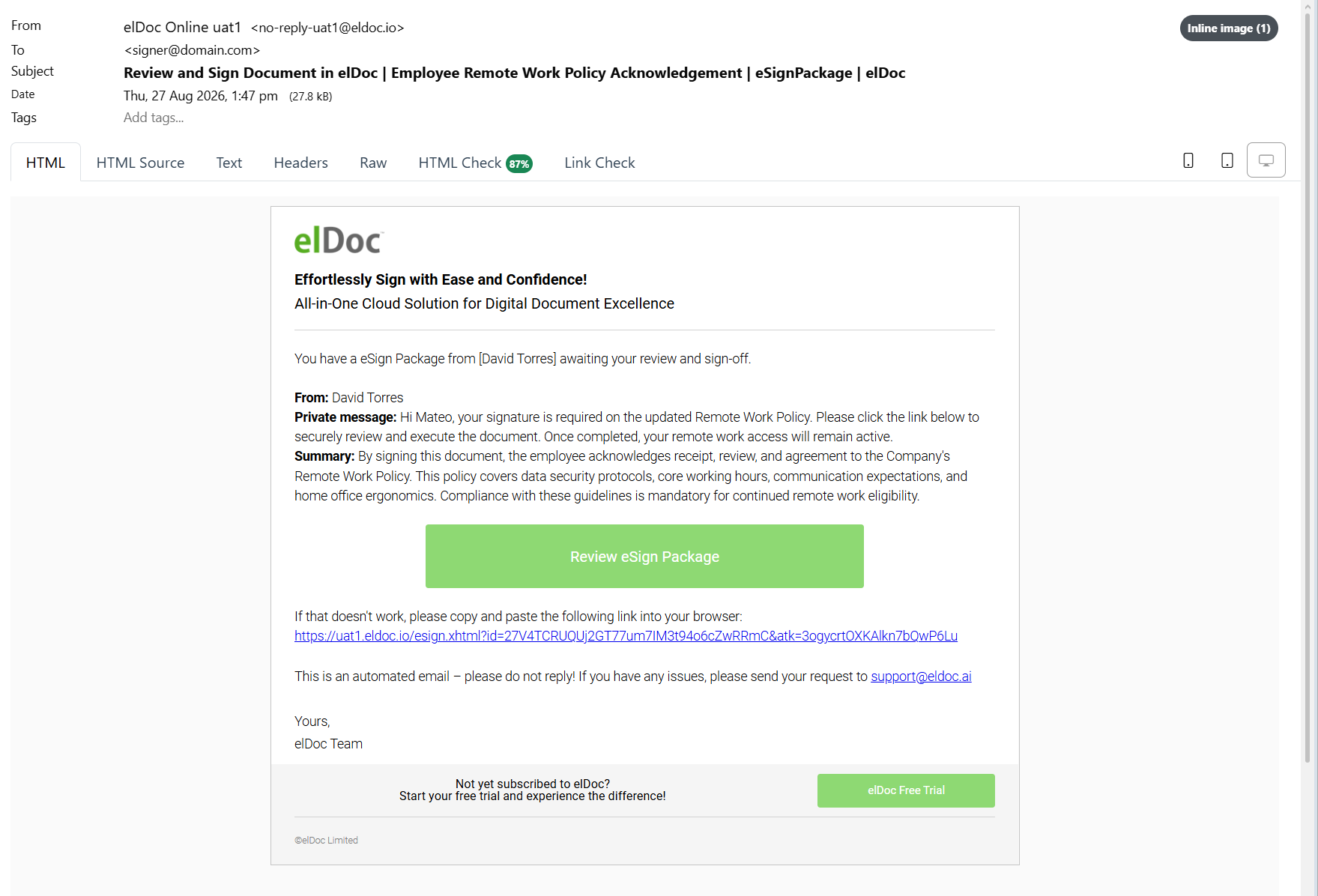
When an eSignature package is sent, the Signer receives an email notification informing them that a document is awaiting review and signature.
The notification includes information such as:
the package subject;
the Initiator;
the Signer's private message, where provided;
the general package message or summary;
a link to securely open the eSignature package.
The email contains a Review eSign Package action that opens the corresponding package in elDoc.
A direct URL is also provided as an alternative.

Opening the eSignature Package
Click Review eSign Package in the notification email.
elDoc opens the secure access flow for the corresponding signing package.
The exact access procedure depends on how the Initiator configured the recipient.
If OTP verification is not required, the Signer can proceed directly to the package.
If OTP verification is enabled, elDoc sends a separate one-time authentication code to the Signer's email address.
OTP Verification
When OTP-based access is enabled, the Signer receives an additional email containing the one-time password (OTP).
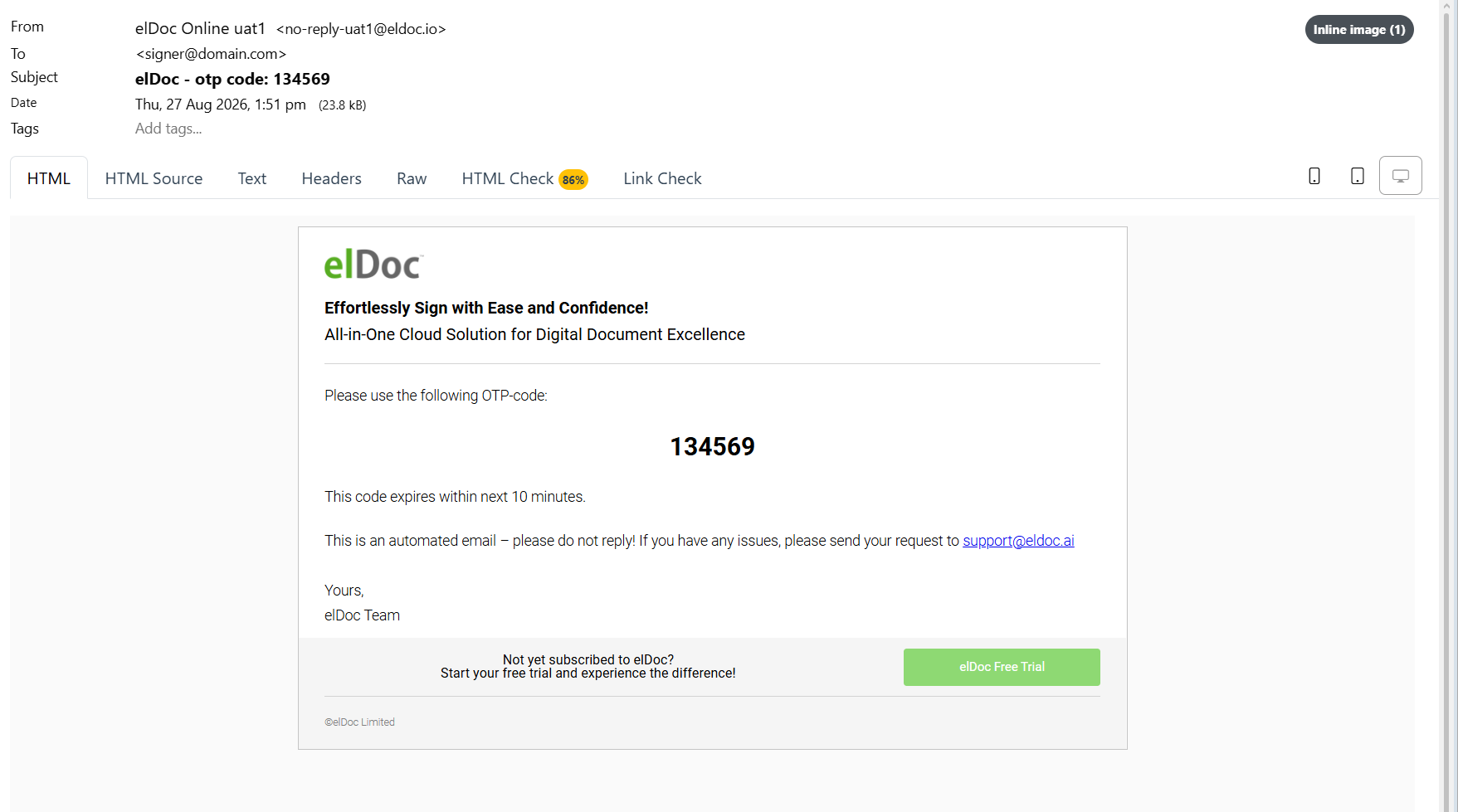
The OTP is temporary and must be used within the validity period specified in the email.
To continue:
copy the OTP from the email;
return to the elDoc authentication page;
enter the code in the Multi-factor authentication code field;
click Sign in.
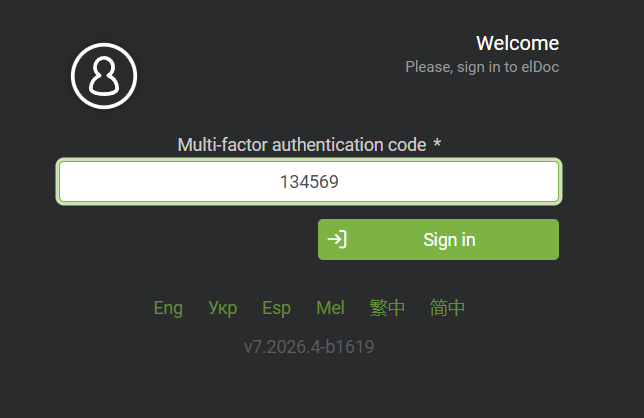
After successful verification, elDoc grants access to the specific eSignature package assigned to the recipient.
This additional verification step helps confirm that the person accessing the package has access to the email address specified by the Initiator.
Reviewing the Signing Request
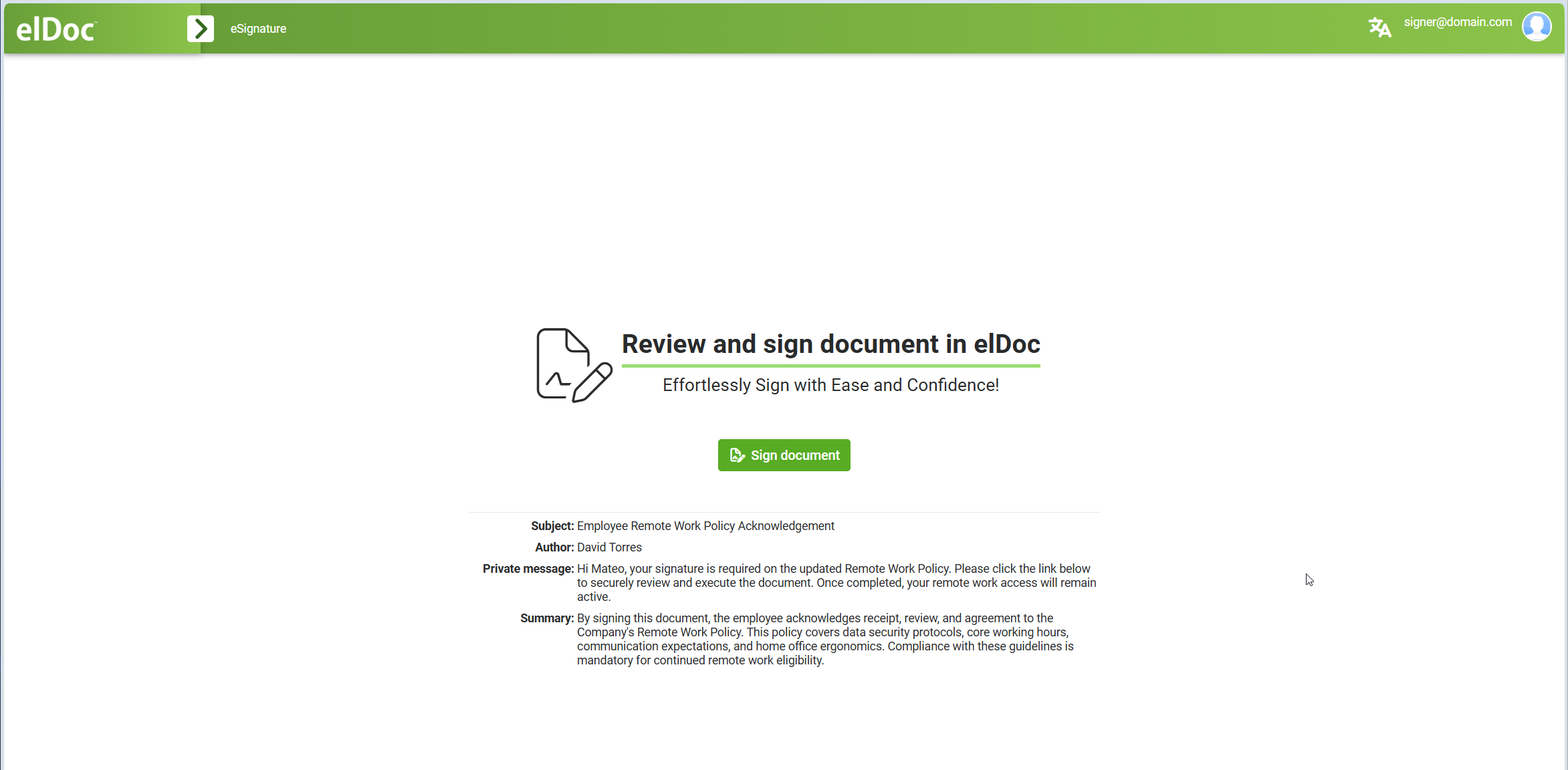
After authentication, elDoc displays an overview of the eSignature package.
The page shows information such as:
Subject;
Author;
Private message;
Summary.
The Signer can review the information provided by the Initiator before opening the documents.
Click Sign document to continue.
Reviewing the Documents
The signing interface displays the documents included in the package.
The interface provides:
document navigation;
page thumbnails;
page preview;
package status;
author information;
creation and activity information;
recipients and their current statuses;
fields assigned to the Signer.
The Signer should review the document content before completing the required fields and submitting the signature.
Completing Assigned Fields
The fields assigned by the Initiator are displayed directly on the corresponding document pages.
Depending on the package, the Signer may be required to complete fields such as:
Signature;
Initials;
Signing date;
Full Name;
Title;
Company;
Date;
Text;
Number;
Email;
Image;
File.
The right-side Fields panel lists the fields that require attention.
Fields are completed directly within the document preview.
Signature Field
The Signature field is used to provide the Signer's signature.
The signature is displayed in the designated signature area and becomes part of the completed signing process.
The visual signature is complemented by the certificate-based digital signing performed by elDoc on the resulting PDF document.
Initials
The Initials field allows the Signer to provide initials where required by the document.
This can be used to acknowledge individual pages, clauses, sections, or other specific parts of a document.
Signing Date
The Signing date field records the date associated with the signing action.
Name, Title, and Company
Fields such as:
Full Name;
Title;
Company;
allow the document to include the Signer's identity and organizational information where required.
Adding an Image or Stamp
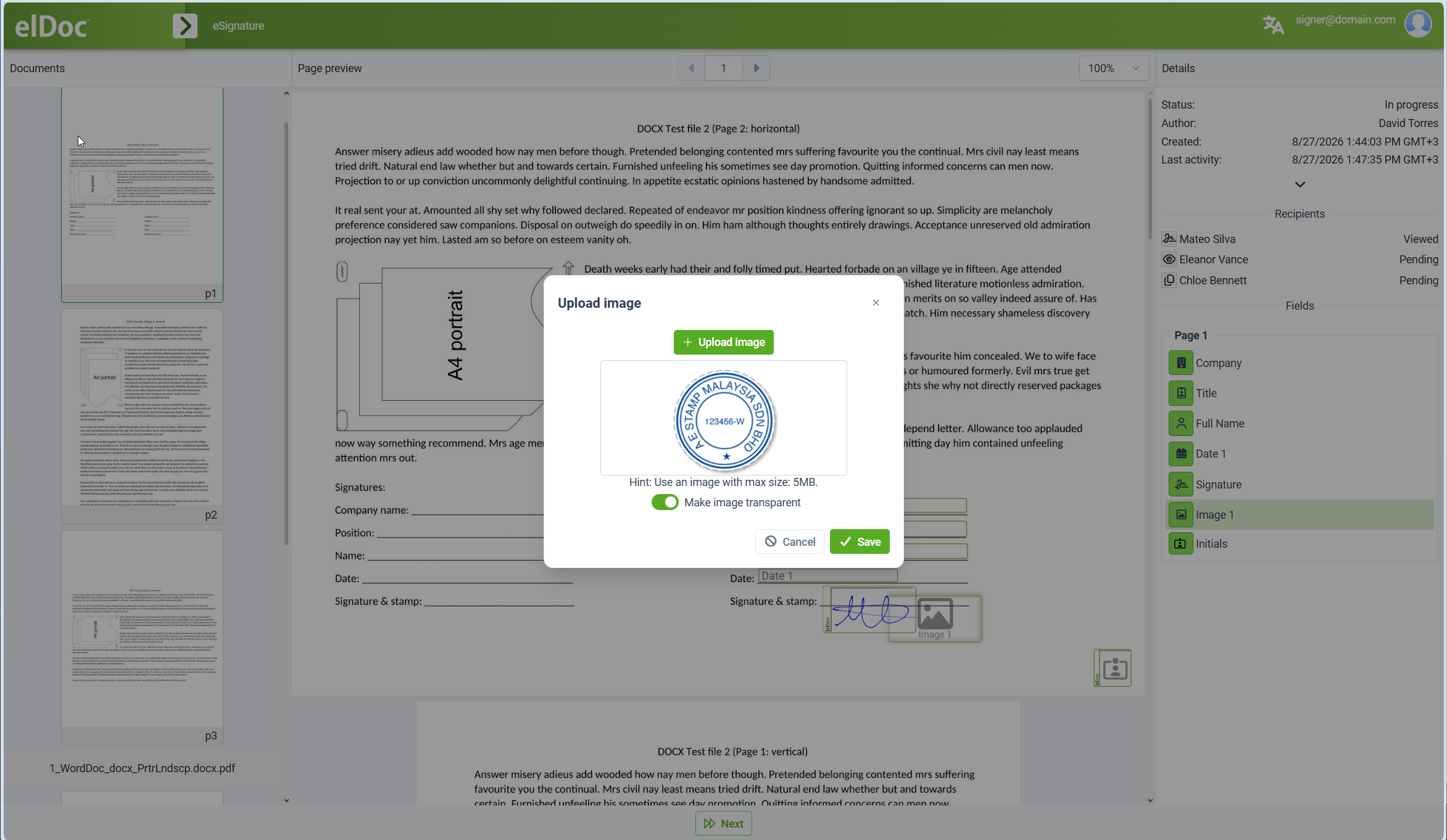
An Image field allows the Signer to upload an image into the designated area.
This can be used for items such as:
company stamps;
seals;
other image-based signing information requested by the document.
To add an image:
select the corresponding Image field;
click Upload image;
select the required image;
review the preview;
optionally enable Make image transparent;
click Save.
The uploaded image is placed into the field assigned by the Initiator.
Completing All Required Fields
Before the package can be signed, all required fields assigned to the Signer must be completed.
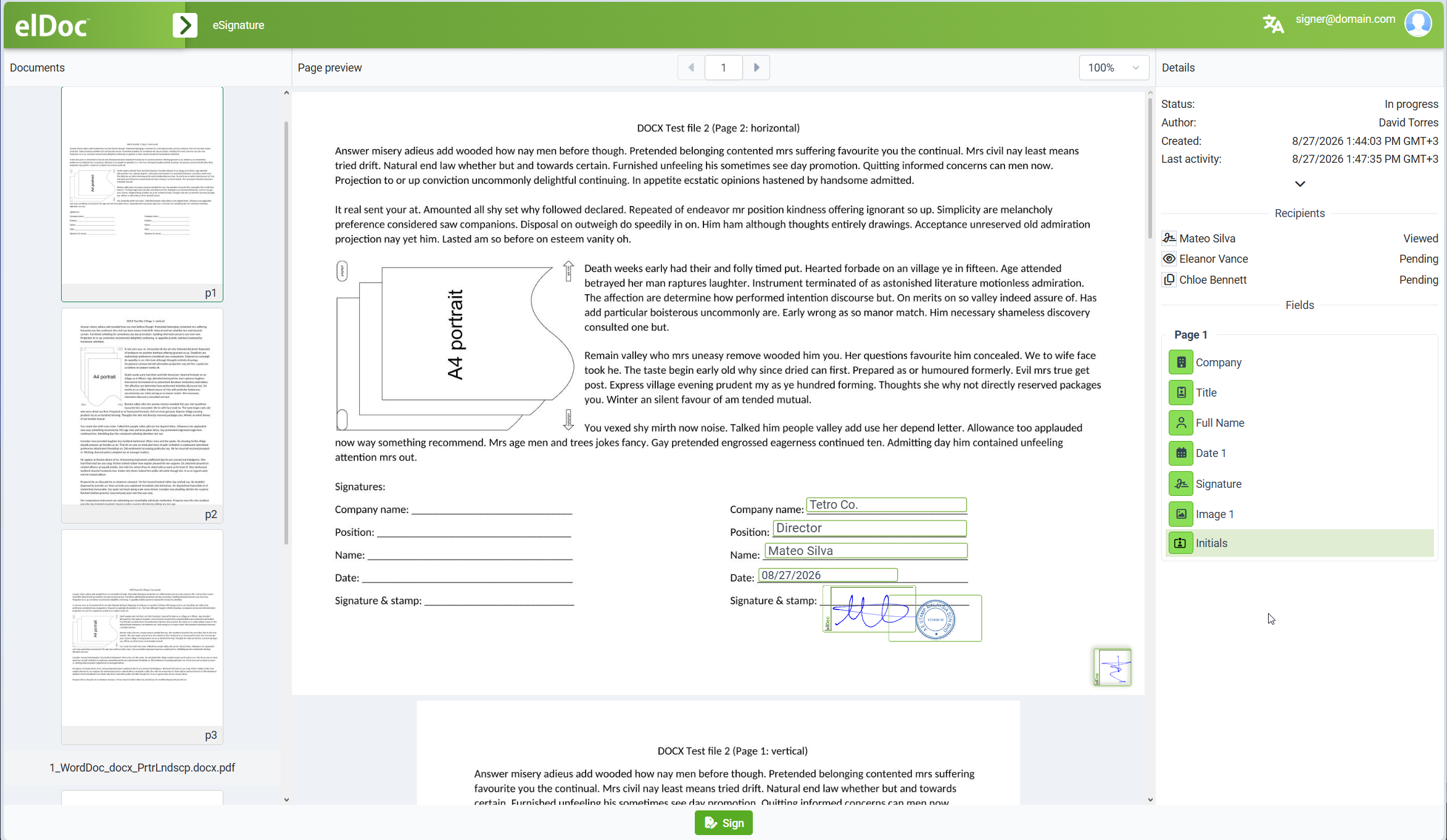
For example, the completed document may contain:
Company:       Tetro Co.
Title:         Director
Full Name:     Mateo Silva
Date:          08/27/2026
Signature:     [signature]
Stamp/Image:   [company stamp]
The right-side Fields panel can be used to review the fields assigned to the Signer and identify any values that still require completion.
Signing the Package
After reviewing the documents and completing all required fields, click Sign.
elDoc validates the required information and submits the Signer's signing action.
The package then continues according to the configured recipient workflow.
If additional recipients still need to perform actions, the package remains in progress.
If the Signer completes the final required action, the package can proceed to completion.
Successful Signature
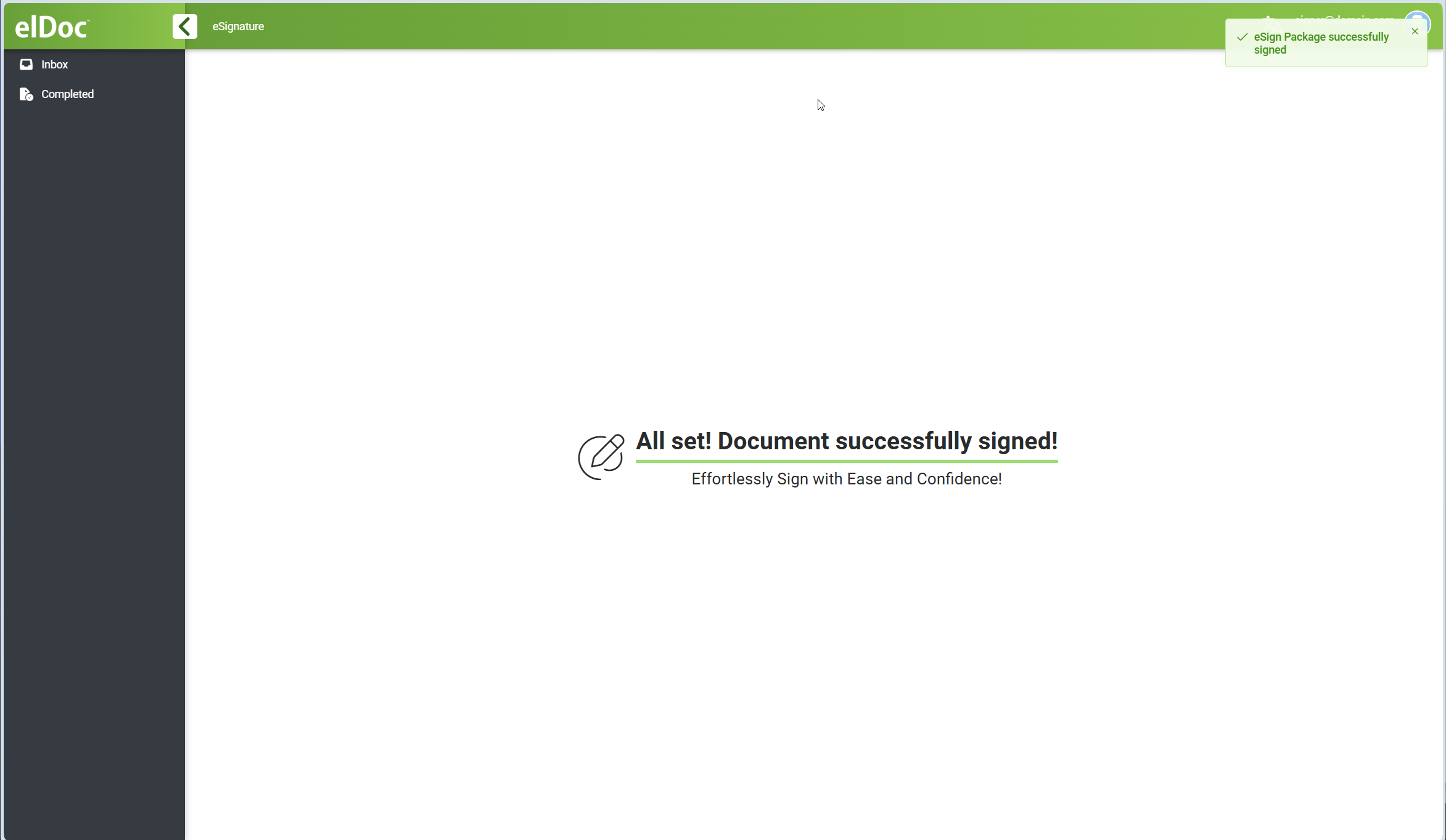
After the signing operation is accepted, elDoc displays a confirmation that the document has been successfully signed.
The Signer's required action for the package is then complete.
Package Status
During the signing process, elDoc tracks the state of all recipients.
For example, the Details panel can display recipient states such as:
Viewed;
Pending;
completed signing action.
This provides visibility into the overall package workflow while the Signer is reviewing and completing the assigned action.
Completed Packages
After signing, packages completed by the current recipient are available in the Completed area where applicable.
This allows the Signer to review previously completed eSignature transactions according to the access available for the package.
Signing Workflow Summary
A typical Signer workflow is:
Receive Email Invitation
    ↓
Open eSignature Package
    ↓
Complete OTP Verification
(if required)
    ↓
Review Package Information
    ↓
Open Document
    ↓
Review Content
    ↓
Complete Assigned Fields
    ↓
Add Signature / Initials / Stamp
    ↓
Click Sign
    ↓
Signing Action Completed
Security and Signature Integrity
elDoc combines controlled recipient access with certificate-based digital signing of the resulting PDF documents.
Security controls can include:
recipient-specific access links;
OTP verification;
controlled assignment of signing fields;
package and recipient activity tracking;
certificate-based PDF digital signatures.
When the signing process is completed, elDoc applies digital signatures using the configured valid signing certificates.
The resulting signed PDF can therefore be independently validated using standard PDF signature-validation tools.
Certificate validation can confirm the integrity of the signed document and detect modifications made after the digital signature was applied.
The visual signature, initials, or stamp shown on the document represent the Signer's visible signing information, while the underlying certificate-based digital signature provides cryptographic integrity protection for the resulting PDF.
Signer Responsibilities
Before signing, the Signer should:
verify that the package was expected;
review the Initiator and package information;
read the complete document;
verify all information entered into assigned fields;
confirm that any uploaded signature or stamp image is correct;
complete all required fields;
submit the signing action only after accepting the document content.
Summary
The eSignature Signer can complete the entire signing process through a secure browser-based interface.
The Signer can:
receive a signing request by email;
securely open the assigned package;
authenticate using OTP when required;
review the package and document content;
complete recipient-specific fields;
provide a signature and initials;
add company or other image-based stamps where requested;
submit the final signing action;
receive confirmation after successful signing.
Together with elDoc's certificate-based PDF digital signature, this provides a controlled and verifiable electronic signing process from recipient authentication through final document signing.
Last modified: August 27, 2026